Small Business Operations

10+ Free CRM Excel & Google Sheets Templates for 2026

Small businesses still run on spreadsheets in 2026. A free CRM Excel template gives you contact tracking, deal stages, and follow-up reminders without monthly software fees or forced onboarding calls....

/15 min read
Cover image for: 10+ Free CRM Excel & Google Sheets Templates for 2026

Small businesses still run on spreadsheets in 2026. A free CRM Excel template gives you contact tracking, deal stages, and follow-up reminders without monthly software fees or forced onboarding calls. You get full control over fields, formulas, and reporting structure.

These templates work best for solopreneurs, freelancers, and teams under ten people managing fewer than 200 active contacts. You can customize every column, add conditional formatting for overdue tasks, and build pivot tables to spot pipeline bottlenecks. The tradeoff is manual data entry and no native email sync.

Free CRM templates cannot replace dedicated software once you need automated lead capture, multi-user permissions, or integration with marketing platforms. But they prepare you for that migration by teaching you which fields matter, how your sales cycle actually works, and what reports your team checks daily. Most businesses outgrow a spreadsheet CRM within six to twelve months.

How to Choose the Right Free CRM Template for Your Business

Match the template structure to your workflow before you download anything. A sales pipeline template tracks deals through stages like "qualified," "proposal sent," and "negotiation." A lead tracking template focuses on inbound inquiries, source attribution, and first-contact speed. A customer service template logs support tickets, resolution times, and satisfaction scores.

Ask yourself what you check most often. If you need to see which deals are stuck in negotiation, grab a pipeline-focused template with deal age formulas. If you lose leads because follow-ups fall through cracks, choose a template with overdue task alerts and next-action columns. If you manage ongoing client projects, look for templates with service history tabs and renewal date tracking.

Your template should fit your team size and update frequency. Solo users can handle complex multi-tab workbooks. Teams of three or more need simpler shared sheets with clear ownership columns and fewer formulas that break when someone edits the wrong cell.

Sales Pipeline vs. Lead Tracking vs. Customer Service Templates

Sales pipeline templates organize deals by stage and expected close date. Each row represents one opportunity with columns for deal value, probability to win, and last contact date. These templates help you forecast monthly revenue and identify which stage slows deals down most.

Lead tracking templates prioritize speed to contact and source performance. You log every inquiry with timestamp, origin (website form, referral, cold outreach), and first-response time. The goal is conversion rate by source, not revenue forecasting.

Customer service templates track issues, not deals. Each row is a ticket with priority level, assigned agent, open date, and resolution status. You measure average resolution time and customer satisfaction, not pipeline value. Some templates add a "contact history" tab so you can see all past interactions before responding to a new ticket.

Key Features to Look for in a Free CRM Template

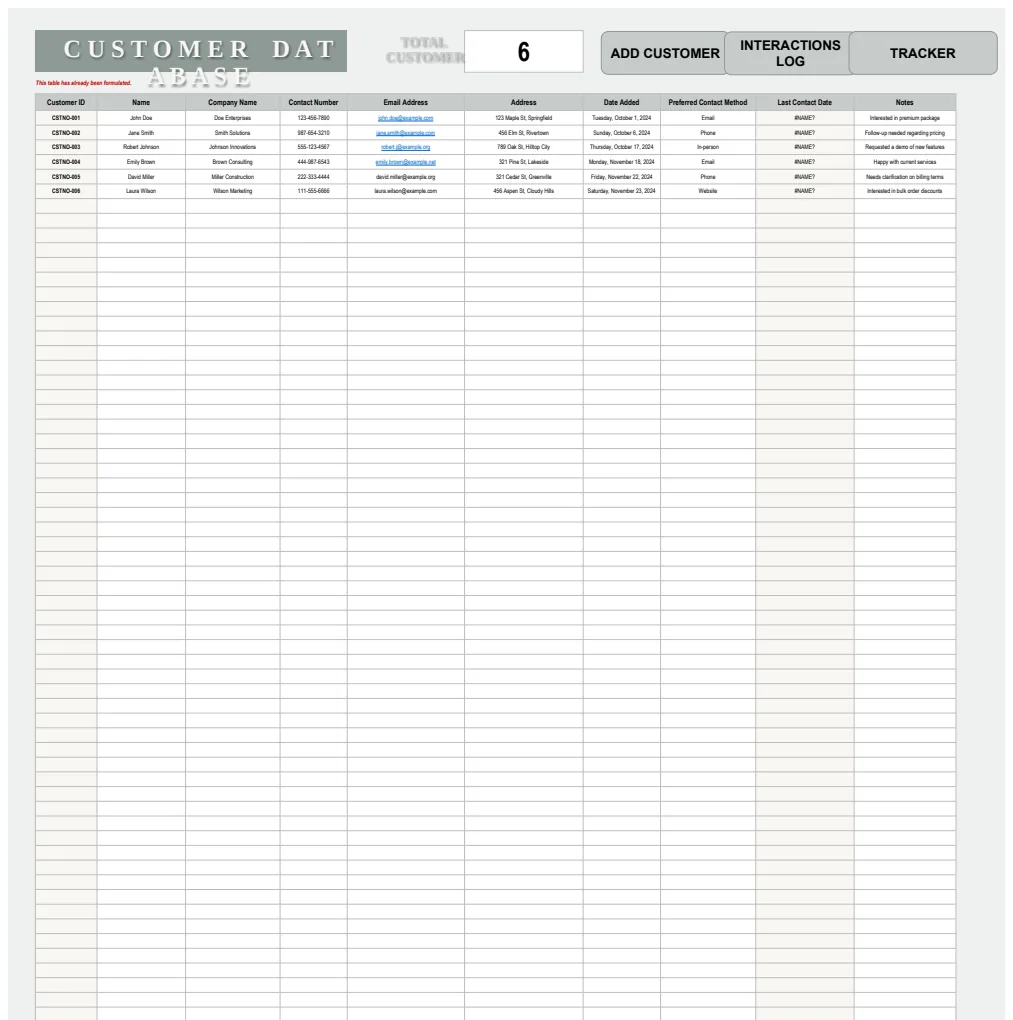
Every useful CRM template includes these columns in the contact tab: full name, company, email, phone, lead source, status (active, cold, lost), and date added. The deals or opportunities tab needs deal name, contact link, stage, value, close date, and last activity date.

Essential contact tab structure with status tracking and source attribution

Look for templates with a separate activity log tab. This tab records every call, email, meeting, and note with a timestamp and linked contact name. You can filter by date range or contact to see interaction history without cluttering your main contact list.

Check for built-in formulas that calculate days since last contact, deal age in current stage, or probability-adjusted pipeline value. Templates with conditional formatting highlight overdue follow-ups in red or flag deals that have sat in one stage too long. These features save you from building tracking logic from scratch.

A dashboard tab with summary charts is optional but valuable. It should show pipeline breakdown by stage, monthly deal flow, and win rate by lead source. If the template lacks this, you can add it later with pivot tables and simple bar charts.

Step-by-Step Guide: Setting Up Your Free CRM Template in Excel or Google Sheets

Download your chosen template and save a master copy before you customize. Open the working copy and review every tab to understand how data flows between sheets. Most templates link the deals tab to the contacts tab using VLOOKUP or filter functions.

Start by customizing field names to match your terminology. If you call stages "discovery," "demo," and "contract review" instead of "qualified," "proposal," and "negotiation," rename those columns now. Add any missing fields your process requires, like "contract type" or "renewal date."

Delete sample data rows but leave one example row until you understand the formulas. Check which cells contain formulas (they start with an equals sign) and avoid overwriting them. If a formula references another tab, trace the connection so you know what breaks if you rename a sheet.

Set up data validation for dropdown fields like status, stage, and lead source. This keeps entries consistent across team members. In Excel, use Data > Data Validation > List. In Google Sheets, use Data > Data Validation and specify a range or comma-separated list.

Structuring Your Contact and Deal Tabs

The contact tab should list one person per row with a unique ID in the first column. Use a simple numbering system or let Excel auto-generate row numbers. Include columns for first name, last name, company, title, email, phone, lead source, status, owner (if multi-user), date added, and last contact date.

Add a notes column for quick context but keep detailed interaction history in a separate activity log tab. This prevents the contact tab from becoming unreadably wide. If you manage multiple contacts per company, add a "primary contact" checkbox or flag.

The deals tab needs a unique deal ID, deal name, linked contact ID, company name, deal stage, value, expected close date, probability percentage, date created, and last activity date. Add a "next action" column so you always know what to do next without re-reading notes.

Link the two tabs using a contact ID column. In the deals tab, use VLOOKUP to pull company name and contact email from the contacts tab based on contact ID. This prevents duplicate data entry and keeps information synced when you update a contact's details.

Adding Formulas for Deal Age, Follow-Up Alerts, and Win Probability

Calculate deal age with a simple subtraction formula. In the deal age column, enter =TODAY()-[Date Created] in Excel or Google Sheets. This returns the number of days since you created the deal. Format the cell as a number, not a date.

For days in current stage, add a "stage entry date" column that you manually update when a deal moves. Then use =TODAY()-[Stage Entry Date] to see how long it has been stuck. Conditional formatting can highlight deals over 30 days in one stage.

Deal age formulas and conditional formatting for pipeline health monitoring

Create a follow-up alert using a formula that compares last contact date to today. In a new "overdue" column, enter =IF(TODAY()-[Last Contact Date]>7,"OVERDUE","OK"). Adjust the 7 to match your follow-up cadence. Use conditional formatting to turn "OVERDUE" cells red.

Calculate weighted pipeline value by multiplying deal value by probability. If deal value is in column E and probability is in column F, enter =E2*F2 in the weighted value column. Sum this column to see realistic revenue forecast, not just total pipeline.

Building a Simple CRM Dashboard with Charts and Conditional Formatting

Create a new tab called "Dashboard" and add summary metrics at the top: total contacts, active deals, total pipeline value, weighted pipeline value, and average deal size. Use COUNTA, SUM, and AVERAGE functions pointing to your deals tab.

Build a pipeline stage breakdown with a pivot table or manual summary. List each stage in column A and use COUNTIF to count deals in each stage from your deals tab. Add a horizontal bar chart to visualize where deals cluster. This shows bottlenecks instantly.

Track monthly deal flow with a simple table showing month, deals created, deals won, deals lost, and win rate. Use COUNTIFS to filter deals by close date and status. Add a line chart to spot seasonal trends or momentum shifts.

Apply conditional formatting to your deals tab to highlight overdue follow-ups, stale deals, and high-value opportunities. In Excel, select the range and use Home > Conditional Formatting > New Rule. In Google Sheets, use Format > Conditional Formatting and set rules based on cell values or formulas.

Comparison: Top Free CRM Templates for Excel and Google Sheets

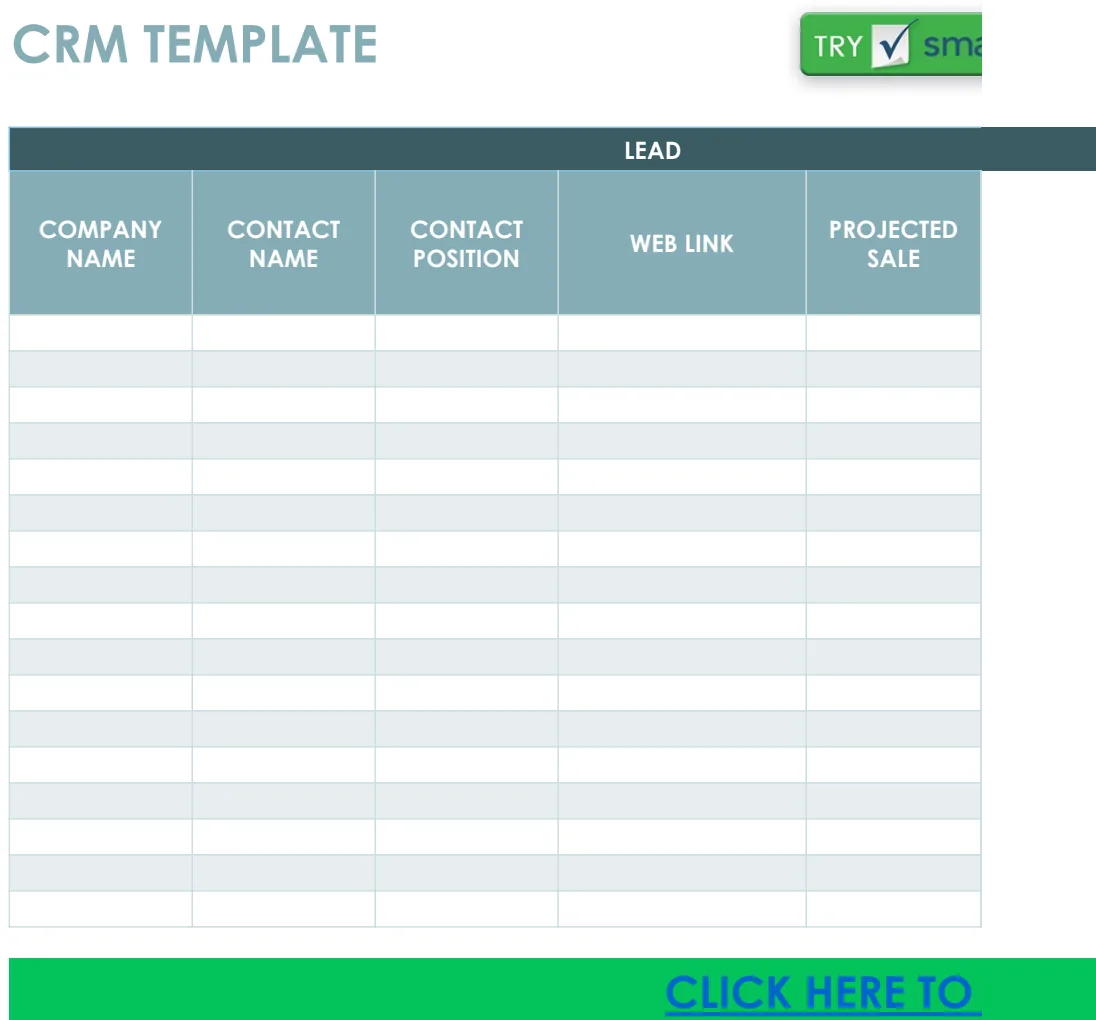
HubSpot's free CRM template offers a clean three-tab structure with contacts, companies, and deals. It includes basic formulas for deal age and last contact date but lacks a dashboard or activity log. The template works well for the first two to six months managing up to 50 customers while you learn what data matters before investing in software.

Pipeline CRM's 12-tab sales management template is the most comprehensive free option available in 2026. It includes separate tabs for contacts, companies, opportunities, activities, products, quotes, and a full dashboard with charts. The structure mirrors paid CRM software, making migration easier later. Best for teams of three to five who need detailed reporting and product catalog tracking.

OnePage CRM's action-oriented template focuses on follow-up consistency. It highlights overdue tasks and next actions at the top of every contact row. The template is lightweight with just two main tabs but includes smart conditional formatting that flags contacts you haven't touched in over a week. Perfect for solo consultants and service providers who live and die by follow-up discipline.

Teamopipe's deal-centric template automatically calculates deal probability based on stage and age. It uses a weighted pipeline formula to show realistic revenue forecast, not just total opportunity value. The template includes a simple dashboard with win rate by source and average deal cycle length. Best for B2B sales teams tracking longer sales cycles with multiple decision-makers.

HubSpot Free CRM Template

HubSpot's template is designed for managing up to 50 customers during your first 2-6 months. It includes three tabs: contacts, companies, and deals. Each tab has essential fields pre-configured with data validation dropdowns for status, stage, and priority.

The contacts tab links to the companies tab using a company ID column. The deals tab pulls contact and company information automatically. This prevents duplicate data entry and keeps everything synced when you update a contact's company affiliation.

The template lacks an activity log tab and dashboard. You track last contact date but not detailed interaction history. There are no charts or summary metrics. This simplicity works well for beginners but feels limiting once you manage more than 30 active deals.

Pipeline CRM's 12-Tab Sales Management Template

Pipeline CRM's template is the most feature-rich free option available. It includes tabs for contacts, companies, opportunities, activities, products, quotes, invoices, tasks, calendar, reports, settings, and dashboard. Each tab links to others through ID columns and VLOOKUP formulas.

The dashboard tab shows pipeline value by stage, monthly deal flow, win rate by lead source, and average deal size. Charts update automatically when you add new deals. The activities tab logs every call, email, and meeting with timestamp and linked contact.

This template requires more setup time than simpler options. You need to configure product catalogs, quote templates, and report filters. But once configured, it handles complex B2B sales processes with multiple products per deal and multi-touch attribution. Best for teams of three to ten who need structure without paying for CRM software yet.

OnePage CRM and Teamopipe: Action-Oriented and Deal-Centric Templates

OnePage CRM's template is built around one simple idea: follow up consistently. The main contacts tab includes a "next action" column and "days since last contact" formula. Conditional formatting turns rows red when contacts go cold.

The template uses a single-tab design with collapsible sections for notes and history. This keeps everything visible without switching tabs. You can sort by next action date to see your daily to-do list or by days since last contact to find neglected leads.

Teamopipe's template takes a deal-centric approach. Each opportunity row includes stage, value, probability, and weighted value. The template calculates average probability by stage based on your historical win rates. This gives you a realistic revenue forecast that accounts for deal quality, not just quantity.

Both templates skip fancy features like product catalogs and invoice generation. They focus on the core CRM job: remembering who to call next and what to say when you do.

Recommended Resources

Skip the blank-sheet setup

Start with a pre-built structure that includes contact tracking, deal stages, and dashboard reporting in both Excel and Google Sheets formats

When to Use a Spreadsheet CRM vs. When to Upgrade to CRM Software

Use a spreadsheet CRM when you manage fewer than 200 active contacts, work solo or with a team under five people, and can dedicate 15 minutes daily to manual data entry. Spreadsheets give you full control over fields, formulas, and reporting without monthly fees or vendor lock-in.

Upgrade to CRM software when you need automated lead capture from web forms, email sync that logs conversations automatically, or multi-user permissions with activity tracking. Software makes sense when manual data entry takes more than an hour per week or when you lose deals because follow-ups fall through cracks.

Consider software when you need native integrations with email marketing platforms, accounting tools, or customer support systems. Spreadsheets can connect through Zapier or Make, but those integrations break easily and require maintenance. Built-in integrations save time and reduce errors.

Your spreadsheet CRM prepares you for software migration by teaching you which fields you actually use, what reports you check daily, and how your sales process really works. Most teams customize their spreadsheet for three to six months before they know what CRM features they need. This prevents buying software with features you never use.

Common Mistakes When Using a Free CRM Template (and How to Avoid Them)

Inconsistent data entry kills spreadsheet CRMs faster than any other mistake. One person writes "New York," another writes "NY," and a third writes "New York, NY." Your reports break because filtering by city returns three different results. Fix this with data validation dropdowns for every field that repeats: status, stage, state, lead source, and priority.

Missing follow-ups happen when you rely on memory instead of system reminders. Add a "next contact date" column and check it every morning. Use conditional formatting to highlight overdue contacts in red. Set a calendar reminder to review your CRM daily, not just when you remember.

No backup plan means one accidental delete or corrupted file loses months of data. Save your spreadsheet to cloud storage with version history enabled. Google Sheets auto-saves every edit with full version history. Excel users should save to OneDrive or Dropbox with file versioning turned on.

Over-complicating the structure with too many tabs, formulas, and custom fields makes the template unusable. Start simple with contacts, deals, and activities. Add complexity only when you hit a specific limitation. If you cannot explain how to use the template in under five minutes, it is too complex.

Failing to clean data regularly lets duplicates, outdated contacts, and closed deals clutter your view. Schedule monthly cleanup: merge duplicate contacts, archive deals older than 12 months, and delete contacts who explicitly opted out. A lean CRM is a useful CRM.

Maximizing Productivity with Your Spreadsheet CRM

Google Sheets add-ons extend functionality without switching tools. Mail Merge with Gmail sends personalized emails to filtered contact lists. Form Publisher generates PDF quotes or invoices from deal data. Yet Another Mail Merge tracks email opens and clicks directly in your sheet.

Zapier integrations connect your spreadsheet to hundreds of apps without coding. Automatically add new contacts from Typeform submissions, Calendly bookings, or Stripe customers. Send Slack notifications when a deal moves to "negotiation" stage. Create tasks in Asana when a follow-up date arrives.

Shared team access requires clear ownership rules. Assign each contact and deal to one person using an "owner" column. Use Google Sheets' comment feature to tag teammates with questions instead of editing their rows. Protect formula columns so team members cannot accidentally overwrite calculations.

Mobile editing lets you update your CRM from client meetings or coffee shops. Google Sheets mobile app works well for quick updates but struggles with complex formulas and wide tables. Keep your mobile workflow simple: update last contact date, change deal stage, add quick notes. Save detailed analysis for desktop.

Weekly review workflows keep your CRM accurate and actionable. Every Monday, filter for overdue follow-ups and schedule calls. Every Friday, review deals in "negotiation" for over 30 days and decide whether to push or disqualify. Monthly, check win rate by lead source and double down on what works.

Integrating Your CRM Template with Email, Calendar, and Task Tools

Connect your spreadsheet to Gmail using Google Apps Script or Zapier. Log sent emails automatically by forwarding a copy to a Zapier email address that parses sender, subject, and body into your activity log tab. This requires setup but eliminates manual email logging.

Sync calendar events to your CRM by connecting Google Calendar to your spreadsheet through Zapier. When you create a meeting with a contact's email address, Zapier adds a row to your activities tab with meeting date, attendees, and notes. This works only if you consistently include contact email addresses in calendar invites.

Create tasks in Todoist, Asana, or ClickUp from CRM follow-up dates using Zapier filters. When a deal's next action date equals today, Zapier creates a task with contact name, deal details, and next action description. The task links back to your spreadsheet row for context.

Use email templates stored in Gmail or Outlook to speed up common messages. Create templates for first contact, follow-up after demo, proposal sent, and contract negotiation. Reference these templates in your CRM's next action column so you know exactly what to send without rewriting from scratch.

Using Advanced Functions: VLOOKUP, FILTER, and Pivot Tables for CRM Reporting

VLOOKUP pulls contact details into your deals tab automatically. In your deals tab, use =VLOOKUP([Contact ID], Contacts!A:F, 2, FALSE) to pull company name from the contacts tab. The formula searches column A in the Contacts tab for the contact ID and returns the value from column 2 (company name).

FILTER creates dynamic lists based on criteria without pivot tables. To show only deals in "negotiation" stage, use =FILTER(Deals!A:J, Deals!E:E="Negotiation"). This returns all columns for deals where column E equals "Negotiation." The list updates automatically when you change deal stages.

Pivot tables summarize large datasets with drag-and-drop simplicity. Create a pivot table from your deals tab to show total pipeline value by stage, average deal size by lead source, or win rate by owner. In Excel, use Insert > PivotTable. In Google Sheets, use Data > Pivot Table.

COUNTIFS and SUMIFS calculate metrics based on multiple criteria. To count deals created this month with value over $5,000, use =COUNTIFS(Deals!F:F,">="&DATE(2026,6,1), Deals!F:F,"<"&DATE(2026,7,1), Deals!G:G,">5000"). This counts rows where column F (date created) is in June 2026 and column G (value) exceeds $5,000.

Conditional AVERAGE shows performance by segment. Calculate average deal size for won deals by source using =AVERAGEIFS(Deals!G:G, Deals!E:E,"Won", Deals!H:H,"Referral"). This averages column G (deal value) where column E (status) is "Won" and column H (source) is "Referral."

Ready-Made CRM Template: Skip the Setup and Start Tracking Today

Building a CRM from scratch takes hours of column planning, formula writing, and dashboard design. The Ultimate Client Tracker CRM Template includes pre-built contact tracking, deal stages, activity logging, and dashboard reporting in both Excel and Google Sheets formats.

The template includes linked tabs for contacts, deals, activities, and a visual dashboard with pipeline breakdown and overdue task alerts. Every formula is already configured and tested. You customize field names and stages to match your workflow, then start entering data immediately.

This works best for freelancers, consultants, and small teams managing 50 to 200 active contacts who need structure without software complexity. The template includes setup instructions and formula documentation so you understand how everything connects. You own the file completely with no subscriptions or usage limits.

Get the newsletter

One sharp idea every Sunday.

No fluff. No sales pitches. Just the best of what we publish, hand-picked.