15+ Essential Spreadsheet Templates for Freelancers in 2026
Freelancers lose an average of 38% of work time to spreadsheet admin. That number jumps when you're building every tracker from scratch, debugging broken formulas at midnight, or scrambling through re...
Freelancers lose an average of 38% of work time to spreadsheet admin. That number jumps when you're building every tracker from scratch, debugging broken formulas at midnight, or scrambling through receipts three days before a quarterly tax deadline. The right template cuts that waste in half and gives you a tested structure you can trust.
Dedicated spreadsheet templates solve the three problems that kill freelance productivity: scattered financial records across apps and bank statements, manual invoicing that eats billable hours, and tax prep that turns into a week-long archaeological dig every April. A good template consolidates everything into one system, automates the repetitive math, and surfaces the numbers you need to make smart pricing and spending decisions. You stop hunting for last month's invoice and start tracking profit margins in real time.
Why Freelancers Need Dedicated Spreadsheet Templates in 2026
Freelancers face a unique admin burden that salaried workers never see. You're the CEO, bookkeeper, project manager, and collections department rolled into one. Every hour spent reconciling expenses or chasing down payment status is an hour you can't bill to a client.
The typical freelancer juggles five to ten active projects, three to eight clients, and irregular payment schedules that make monthly budgeting a guessing game. Spreadsheets become the single source of truth when client portals, bank apps, and email threads all tell different stories. A dedicated template gives you one place to log income, track expenses by category, calculate tax obligations, and see whether you're actually profitable this quarter.
Generic budget sheets fail freelancers because they assume steady paychecks. You need trackers that handle lumpy cash flow, late payments, and the reality that February might bring in $12,000 while March delivers $2,400. Templates built for freelancers include fields for payment status, client names, project codes, and invoice due dates. They calculate rolling averages instead of fixed monthly targets and flag when your expense burn rate exceeds safe thresholds for your current pipeline.
Core Financial Templates Every Freelancer Should Use
Your financial toolkit needs four foundational templates: income tracking, expense logging, invoicing management, and tax preparation. These four sheets form the backbone of a sustainable freelance business. Everything else is optimization.
Income tracking shows you which clients and project types actually pay the bills. Expense logs reveal where your money goes and surface deductible costs you'd otherwise forget. Invoicing templates standardize your billing process and reduce the time from project completion to payment. Tax prep sheets organize deductions by IRS category and calculate quarterly estimated payments so you avoid penalties and April surprises.
Link these four templates together. Your income tracker pulls totals into your tax sheet. Your expense log feeds deduction categories. Your invoicing template updates payment status in your income tracker. This interconnected system gives you a real-time financial dashboard without paying for accounting software or manually updating three different tools.
Income and Expense Tracker Setup
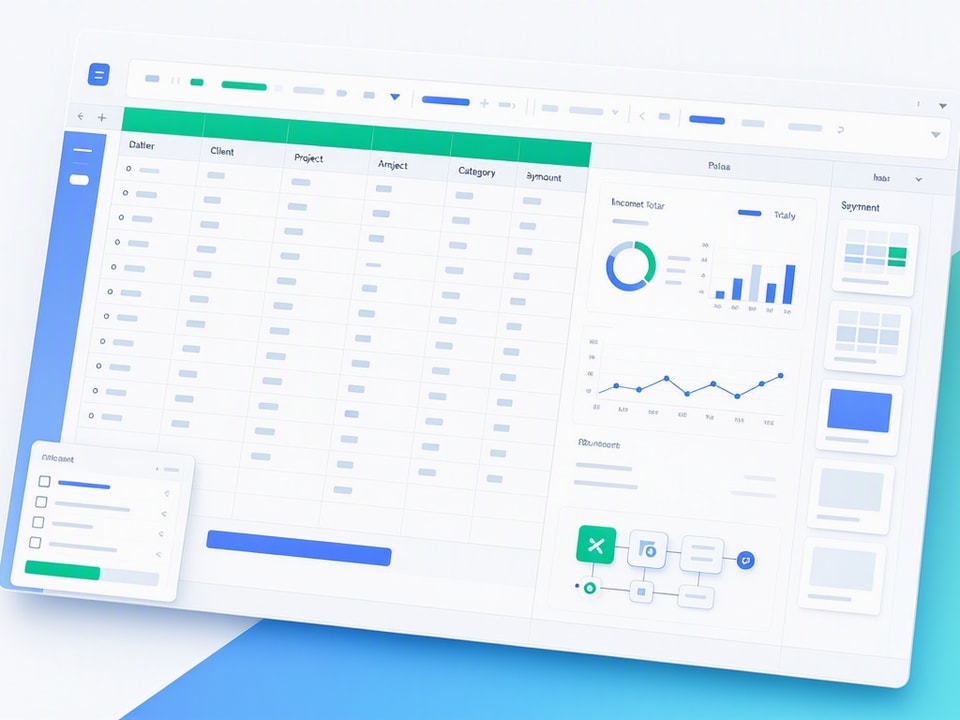
Start with seven columns: date, client name, project description, amount, category, payment status, and notes. Date and amount are self-explanatory. Client name lets you filter by customer and spot your top revenue sources. Project description helps when you need to reference past work or justify a rate increase.
Category is where most freelancers get lazy and pay for it later. Create specific categories like "copywriting," "design work," "consulting calls," "retainer fees," and "rush project premiums." Granular categories show you which services command the highest rates and which clients generate the most profitable work. Payment status needs only three values: pending, paid, and overdue. Add a fourth column for payment method if you want to track processing fees.
Set up formulas at the bottom of each column. Use =SUM() for total income, =SUMIF() to calculate income by category or client, and =COUNTIF() to count pending invoices. Add a profit margin row that subtracts total expenses from total income and divides by total income. If that number drops below 30%, you're either underpricing or overspending.
Build a summary dashboard on a separate tab. Pull in monthly totals, average project value, top three clients by revenue, and year-to-date income. Update this sheet weekly. The five minutes you spend logging transactions saves hours of detective work when tax season arrives or a client disputes an invoice.
Invoicing and Payment Management
A good invoice template includes eight elements: your business name and contact info, client name and address, invoice number, invoice date, due date, itemized services with quantities and rates, total amount due, and payment terms. Structure invoice numbers as YYYYMM-XXX where YYYY is the year, MM is the month, and XXX is a sequential counter. Invoice 202606-003 tells you it's the third invoice issued in June 2026.
Set payment terms clearly. "Net 30" means payment is due 30 days after the invoice date. "Due on receipt" means you expect payment immediately. "2/10 Net 30" offers a 2% discount if paid within 10 days, otherwise full payment is due in 30. Most freelancers use Net 15 or Net 30. Shorter terms improve cash flow but may irritate clients who run monthly accounting cycles.
Automate payment reminders with conditional formatting. Add a column that calculates days since invoice date. Set a rule that highlights invoices yellow at 20 days, orange at 30 days, and red at 45 days. This visual system tells you at a glance which clients need a follow-up email. Copy your reminder template into the notes column so you're not rewriting the same message every time.
Templates save setup time when you invoice multiple clients weekly. You're not rebuilding the layout, recalculating totals, or hunting for your business address in old emails. You duplicate the template, fill in client details and line items, export to PDF, and send. The entire process takes three minutes instead of fifteen.
Tax Preparation and Quarterly Estimated Tax Tracker
Organize deductible expenses into IRS-recognized categories: home office, equipment and supplies, software and subscriptions, professional development, travel, meals, vehicle expenses, insurance, and professional services. Each category gets its own row in your tax prep sheet. Log every expense with date, vendor, amount, category, and a brief description.
Calculate quarterly estimated tax payments using this formula: take your projected annual profit, multiply by your effective tax rate (typically 25-30% for freelancers when you include self-employment tax), and divide by four. If you expect to net $80,000 this year and your effective rate is 28%, you owe $22,400 in taxes. That's $5,600 per quarter, due April 15, June 15, September 15, and January 15.
Build a running total that subtracts each quarterly payment from your annual obligation. This tracker shows whether you're on pace or falling behind. If Q2 revenue exceeds your forecast, recalculate and increase Q3 and Q4 payments. Underpaying triggers penalties. Overpaying ties up cash you could use for business expenses or emergency savings.
Add a separate tab for mileage tracking if you drive for client meetings, co-working spaces, or business errands. The IRS standard mileage rate for 2026 is 70 cents per mile. Log date, starting location, destination, purpose, and miles driven. A $50 tank of gas is not deductible. The business mileage calculated at 70 cents per mile is. Most freelancers leave hundreds or thousands of dollars on the table by skipping this log.
Project and Client Management Templates for Freelancers
Money tracking is half the system. The other half manages deliverables, deadlines, and client expectations. Freelancers who track only finances end up profitable but burned out because they can't see scope creep, missed follow-ups, or overcommitted schedules until it's too late.
Project and client management templates shift your focus from reactive firefighting to proactive planning. You know which projects are behind schedule, which clients need check-ins, and which deliverables are due this week. This visibility lets you adjust timelines, renegotiate scope, or decline new work when your plate is full.
Three templates cover most freelance workflows: a client CRM for relationship management, a project planner for deliverable tracking, and a time log for billable hours. Use all three or pick the two that match your workload. A writer juggling eight clients needs the CRM and time log. A designer managing two large projects needs the project planner and time log.
Client CRM and Contact Log
A freelance CRM needs six core fields: client name, primary contact person, email and phone, project history, current contract dates, and next follow-up date. Add optional fields for hourly rate, retainer amount, payment terms, and referral source. This sheet becomes your single source of truth for client relationships.
Project history should list every engagement with start date, end date, deliverables, and total revenue. This log helps when a past client returns after six months and you need to remember what you built, what worked, and what pricing you agreed on. It also surfaces patterns like clients who consistently request rush work or renegotiate scope mid-project.
Set a next follow-up date for every client, even inactive ones. Active clients get follow-ups every two weeks to check in on deliverables and surface new needs. Completed projects get a 30-day follow-up to request testimonials, referrals, or additional work. Inactive clients get a quarterly check-in to stay top of mind. Use conditional formatting to highlight follow-ups that are overdue.
Recommended Resources
Skip the blank-sheet CRM setup
Start with a tested client tracker that includes project history, follow-up reminders, and revenue calculations already built in
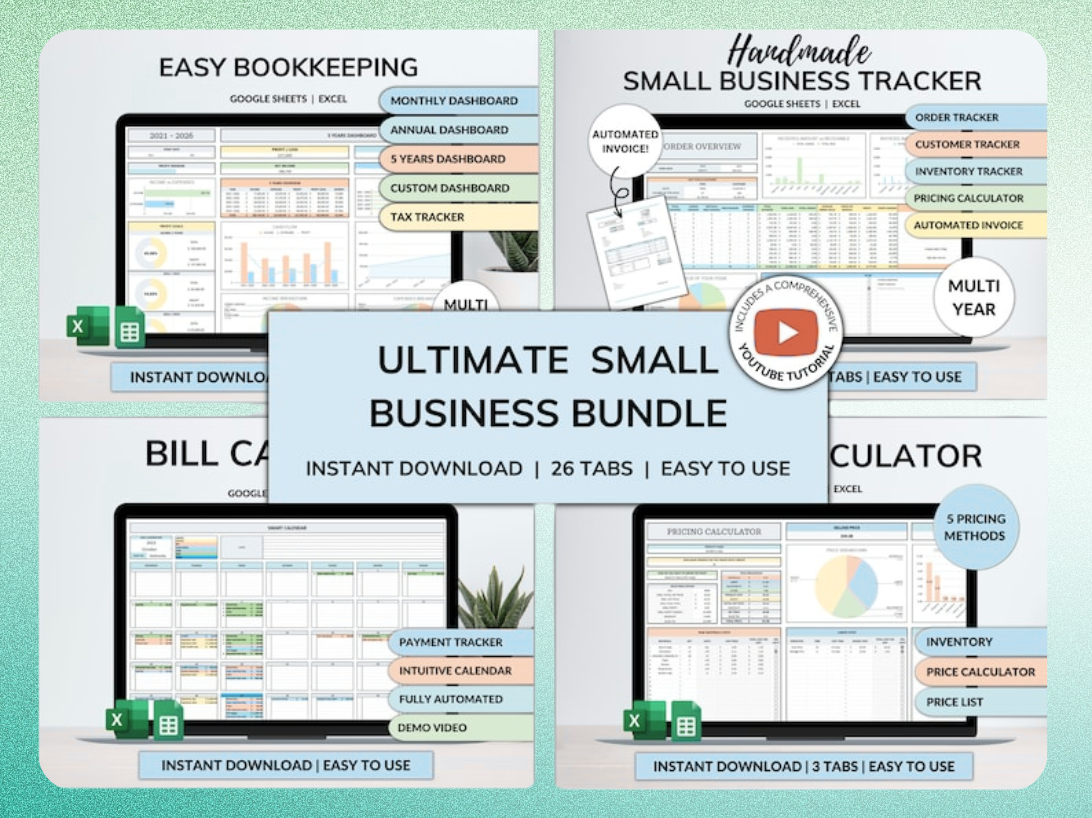
Ultimate Small Business Bundle Templates - Google Sheet + Ms Excel
All-in-One Spreadsheets for Bookkeeping, Inventory, Orders, Billing & Pricing Save Hours Every Week: Automate data entry and dashboards so you can focus on growth, not spreadsheets.
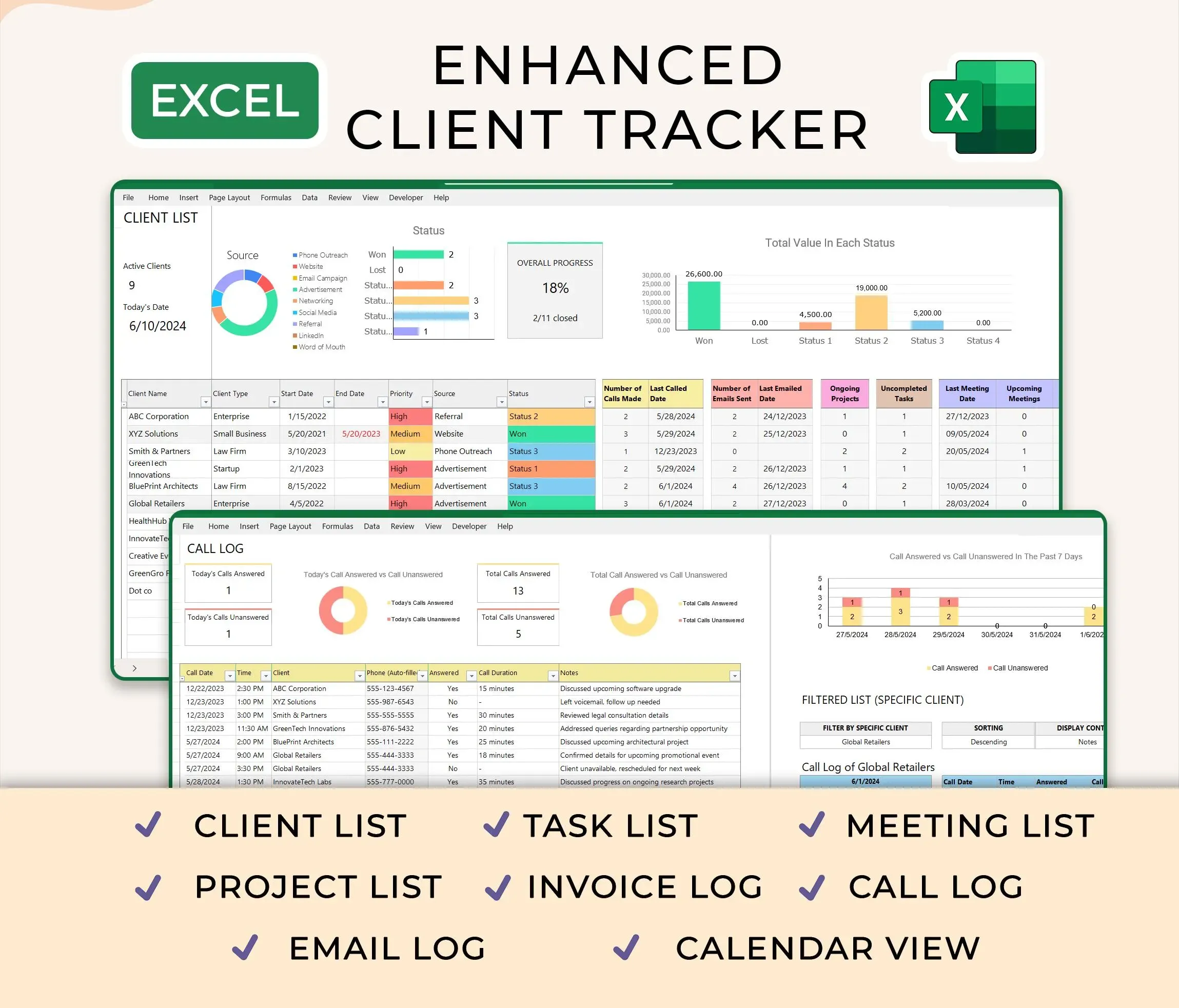
Ultimate Client Tracker CRM Template – Google Sheet & Ms Excel Versions
Sort your CRM by next follow-up date and review it every Monday morning. This five-minute habit prevents the common freelance mistake of losing touch with good clients because you're too busy serving current ones. Repeat business is easier and more profitable than cold outreach. A CRM that prompts regular contact turns one-time projects into long-term relationships.
Project Planner and Task Timeline
A project planner breaks large engagements into phases, tasks, and milestones. Create columns for task name, assigned phase, start date, due date, status, and dependencies. Status uses four values: not started, in progress, blocked, and completed. Dependencies identify tasks that can't start until another task finishes.
Gantt-style layouts work well in Google Sheets and Excel. List tasks in rows and weeks or months in columns. Use conditional formatting to color-code cells based on start and end dates. This visual timeline shows overlapping tasks, deadline clusters, and gaps where you can fit new work. It also makes scope creep visible when a client adds tasks that push your end date past the contract deadline.
Add a milestone row for major deliverables like draft completion, client review, revisions, and final delivery. Milestones anchor your timeline and give you checkpoints to assess progress. If you're consistently missing milestones by a week, you're either underestimating task duration or accepting too many concurrent projects.
Link your project planner to your time tracking sheet. Each logged hour should reference a task from your planner. This connection shows which tasks take longer than estimated and helps you price future projects more accurately. If initial research always takes twice as long as you budget, you need to either charge more or streamline your process.
Time Tracking and Billable Hours Log
Time tracking needs five columns: date, client, project or task, start time, end time, and hourly rate. Add a calculated column for total hours using =(end time - start time)*24. Add another for billable amount using =hours * rate. Sum the billable column to see daily, weekly, or monthly earnings.
Log time in real-time or immediately after completing a task. Memory degrades fast. You'll underestimate a two-hour task as 90 minutes if you wait until end of day to log it. That 30-minute gap across ten tasks per week costs you five billable hours per month. Over a year, that's 60 hours of unpaid work.
Compare logged hours to invoiced amounts monthly. If you're logging 160 billable hours but only invoicing for 120, you're either undercharging, doing too much unbilled admin work, or giving away free revisions. Track non-billable time separately in categories like email, proposals, invoicing, and professional development. If non-billable time exceeds 20% of total work hours, you need to streamline admin or raise rates to cover it.
Integrate your time log with your invoicing template. When you create an invoice, filter your time log by client and date range, sum the billable hours, and copy the line items directly into the invoice. This workflow eliminates the manual step of remembering what you worked on and ensures you bill for every hour.
Customizing Templates for Irregular Freelance Income
Freelance income is lumpy. You might invoice $15,000 in January, collect $8,000 in February, and see nothing until a $12,000 payment lands in March. Standard budget templates that divide annual income by twelve fail because they assume steady monthly deposits. You need a system that accounts for payment delays, seasonal dry spells, and the occasional windfall project.
Irregular income requires two shifts in how you track money. First, separate invoiced revenue from collected revenue. What you bill in June might not arrive until July or August. Second, build budgets around rolling averages instead of fixed monthly amounts. A three-month rolling average smooths out the peaks and valleys and gives you a realistic spending baseline.
Most freelancers keep three months of expenses in a buffer account. When a large payment arrives, transfer the amount you need for immediate bills plus one month of expenses into checking. Move the rest into the buffer. This system prevents the feast-or-famine cycle where you overspend during flush months and panic during slow ones.
Building a Rolling 12-Month Income Forecast
A rolling forecast uses historical data and pipeline estimates to predict the next 12 months of revenue. Start by logging actual income for the past 12 months. Calculate the average monthly income and note any seasonal patterns. Many freelancers see dips in July, August, and December when clients slow down for vacations and holidays.
Add a pipeline column for each upcoming month. List confirmed projects with signed contracts, probable projects with verbal agreements, and possible projects from active proposals. Assign a probability percentage to each category: 100% for confirmed, 50% for probable, 25% for possible. Multiply project value by probability to get expected revenue.
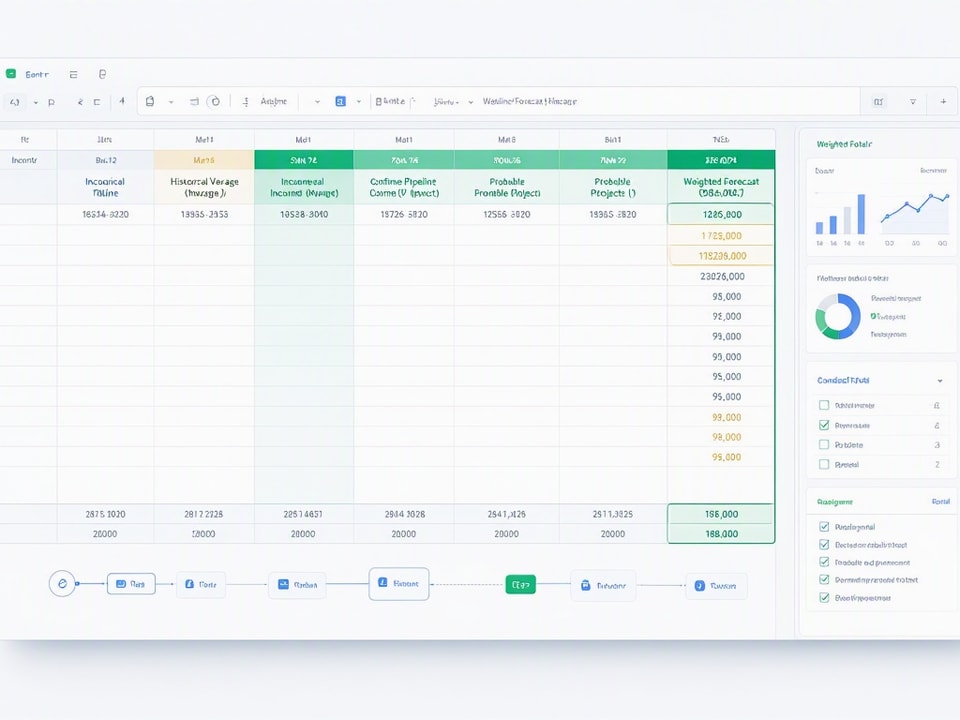
Update your forecast weekly as projects move from possible to probable to confirmed. This living document shows whether you need to ramp up business development, decline new work, or adjust spending plans. If your six-month forecast shows a $20,000 gap between expected income and required expenses, you have time to fill that gap with outreach, proposals, or a temporary retainer client.
Compare actual monthly income to forecasted income. If you consistently overestimate by 30%, you're either too optimistic about close rates or not accounting for payment delays. Adjust your probability percentages down until your forecast accuracy improves. A realistic forecast is more useful than an optimistic one.
Expense Budgeting When Income Fluctuates
Separate expenses into three buckets: fixed costs, variable costs, and discretionary spending. Fixed costs include rent, insurance, software subscriptions, and loan payments. These don't change month to month. Variable costs include meals, supplies, and contract labor. Discretionary spending covers equipment upgrades, courses, and entertainment.
Set spending rules based on percentages of collected revenue, not invoiced amounts. A safe baseline is 50% for fixed costs, 20% for variable costs, and 10% for discretionary spending. The remaining 20% goes to taxes and savings. If your fixed costs exceed 50% of average monthly income, you need to either increase revenue or cut recurring expenses.
Food spending can account for 30% or more of income for some freelancers, especially in high-cost cities or during busy periods when cooking takes a back seat to billable work. If groceries and takeout are eating 30% of income, a food-focused budget sheet does more than a generic monthly tracker. Break food into categories like groceries, coffee shops, lunch, and dinner. Track frequency and average cost per meal. You'll quickly spot that $15 daily lunch habit costs $300 per month.
Flag high-spend categories when they exceed thresholds. Set conditional formatting to highlight any category that crosses 15% of monthly income. This visual warning prompts you to review whether the spending is necessary, temporary, or a habit that needs adjustment. A $200 software subscription is fine if it saves you ten hours per month. It's wasteful if you use it twice a quarter.
Google Sheets vs. Excel: Which Platform Fits Your Freelance Workflow
Google Sheets and Excel both handle freelance tracking well. The right choice depends on whether you prioritize collaboration, mobility, advanced features, or offline access. Most freelancers pick one and stick with it, but some use both for different purposes.
Roughly 66% of office workers use Excel at least once an hour, equating to eight times a working day. That stat includes corporate employees who need Excel for legacy systems and complex financial models. Freelancers have more flexibility. You're not bound by IT policies or company-wide software standards. You can choose the tool that fits your actual workflow.
The decision comes down to three factors: where you work, who you work with, and what features you need. If you work from coffee shops, co-working spaces, and client offices, cloud access matters more than advanced pivot tables. If you're sending templates to accountants or corporate clients, Excel compatibility matters. If you're building three-statement models or running DCF analysis, Excel's formula library and performance edge become relevant.
When to Choose Google Sheets
Choose Google Sheets if you work across multiple devices, collaborate with clients or contractors in real-time, or want free access without software licensing. Sheets works on any device with a browser. You can start an invoice on your laptop, update it from your phone, and share it with a client who reviews it on their tablet. No version conflicts, no emailing files back and forth.
Real-time collaboration is Sheets' killer feature for freelancers. You can share a project tracker with a client, give them comment-only access, and see their feedback appear instantly. You can co-edit a budget with a bookkeeper or business partner without the merge conflicts that plague emailed Excel files. Built-in commenting and version history make collaboration smooth.
Sheets integrates with other Google Workspace tools. You can pull data from Google Forms for client intake, connect to Google Analytics for traffic tracking, or use Google Apps Script to automate repetitive tasks. Add-ons extend functionality without coding. You can install invoice generators, CRM connectors, and chart builders from the Sheets add-on marketplace.
The mobile app works well for quick updates. You can log an expense from your phone while standing in line at the hardware store or update a time log between client calls. The interface is simplified but functional. You won't build complex models on a phone, but you can maintain existing sheets without waiting to get back to your desk.
When Excel Makes More Sense
Choose Excel if you need advanced formulas, complex pivot tables, offline reliability, or compatibility with accountants and corporate clients. Excel's formula library is deeper than Sheets. Functions like XLOOKUP, LET, and LAMBDA give you more power for financial modeling and data analysis. Pivot tables perform better with large datasets.
Offline access matters if you work from locations with unreliable internet or travel frequently. Excel works fully offline. You can build and update sheets on a plane, in a rural co-working space, or anywhere else without connectivity. Changes sync when you reconnect if you're using OneDrive, but the core functionality never depends on a live connection.
Accountants and corporate clients often prefer Excel. If you're sending financial reports to a CPA or submitting expense tracking to a client's finance team, Excel compatibility eliminates friction. You're not asking them to convert formats, adjust formulas, or learn a new interface. You're speaking their language.
Excel handles larger datasets more gracefully. If you're tracking thousands of transactions, running complex scenario models, or building dashboards with multiple data sources, Excel's performance advantage becomes noticeable. Sheets starts to lag with files over 100,000 cells or sheets with heavy formula calculations. Excel can handle millions of rows before performance degrades.
Advanced Financial Modeling for Growth-Oriented Freelancers
Most freelancers never need a three-statement financial model. Your income tracker, expense log, and tax sheet cover 90% of financial management. But if you're scaling from solo freelancer to small agency, productizing your services, or seeking outside investment, you need more sophisticated tools.
62% of freelancers and independent contractors in finance sectors download and customize free Excel templates for three-statement modeling and DCF analysis. These templates help you model different growth scenarios, calculate the value of your business, and make data-driven decisions about hiring, pricing, and expansion. The Dutch freelance and independent market shows particular appetite for more advanced financial models as contractors mature into consultancies.
Advanced modeling isn't about complexity for its own sake. It's about answering specific questions: Can I afford to hire a part-time assistant? What happens to my cash flow if I switch from hourly to retainer pricing? How much revenue do I need to replace my salary and benefits if I quit my day job? A good model gives you concrete answers instead of guesses.
Three-Statement Financial Model Template
A three-statement model connects your income statement, balance sheet, and cash flow statement. The income statement shows revenue, expenses, and profit. The balance sheet shows assets, liabilities, and equity. The cash flow statement tracks money moving in and out of your business. Changes in one statement automatically update the others.
Start with the income statement. List revenue by category, subtract cost of goods sold if applicable, subtract operating expenses, and calculate net income. For freelancers, cost of goods sold might include contract labor, stock photos, or software licenses directly tied to client deliverables. Operating expenses include everything else: marketing, insurance, equipment, home office, and professional development.
Build the balance sheet next. Assets include cash, accounts receivable (unpaid invoices), equipment, and any inventory. Liabilities include accounts payable (unpaid bills), credit card balances, and loans. Equity is the difference between assets and liabilities. For a solo freelancer, equity represents the value you've built in your business over time.
The cash flow statement reconciles net income from the income statement with actual cash movement. Add back non-cash expenses like depreciation, subtract increases in accounts receivable, add increases in accounts payable, and account for any equipment purchases or loan payments. This statement shows why you can be profitable on paper but still run out of cash if clients pay slowly.
Link the three statements with formulas. Net income from the income statement flows into the equity section of the balance sheet and the operating activities section of the cash flow statement. Ending cash from the cash flow statement becomes the cash line on the balance sheet. When the model is properly linked, changing one assumption like monthly revenue or expense growth automatically updates all three statements.
Scenario Planning and Break-Even Analysis
Scenario planning models different futures. Build three versions of your forecast: conservative, expected, and optimistic. Conservative assumes slow client growth, price pressure, and higher expenses. Expected uses your best estimates. Optimistic assumes fast growth, premium pricing, and operational efficiency.
Assign probability weights to each scenario: 25% conservative, 50% expected, 25% optimistic. Calculate a probability-weighted forecast by multiplying each scenario's results by its probability and summing across scenarios. This weighted forecast gives you a more realistic planning baseline than simply using the expected case.
Break-even analysis shows the minimum revenue needed to cover all expenses. Calculate total fixed costs per month. Calculate your average gross margin percentage (revenue minus variable costs, divided by revenue). Divide fixed costs by gross margin percentage. The result is your monthly break-even revenue. If fixed costs are $4,000 per month and gross margin is 60%, you need $6,667 in monthly revenue to break even.
Model different pricing strategies by changing your hourly rate or project minimums in the scenario planner. A 20% rate increase drops your break-even client load by 17%. Raising your project minimum from $2,000 to $3,000 means you need fewer clients to hit revenue targets but may reduce your total addressable market. The model quantifies these trade-offs so you can make informed decisions.
Common Mistakes Freelancers Make with Spreadsheet Templates
The biggest mistake is downloading a template and never updating it. A static spreadsheet is decoration, not a tool. You need to log income and expenses weekly, review your dashboard monthly, and update your forecast quarterly. Set recurring calendar reminders. Treat spreadsheet maintenance like any other business task.
Mixing personal and business expenses in the same tracker creates tax headaches and makes profitability analysis impossible. Open a separate business checking account and credit card. Log only business transactions in your freelance templates. Keep personal budgeting in a different sheet. This separation saves hours during tax prep and gives you clean data for business decisions.
Ignoring backups is asking for disaster. Google Sheets auto-saves to the cloud, but you should still export monthly backups to your local drive or a second cloud service. Excel users should enable OneDrive auto-save or manually save copies to Dropbox or Google Drive. Losing a year of financial records because your laptop died or your account got hacked is preventable.
Over-complicating formulas makes templates fragile and hard to maintain. If you need to watch a 20-minute YouTube tutorial to understand your own spreadsheet, it's too complex. Stick to basic functions like SUM, SUMIF, AVERAGE, VLOOKUP, and IF. Advanced users can add pivot tables and QUERY functions, but the core tracking should be simple enough that you can fix it when something breaks.
Forgetting to test formulas with sample data before going live leads to weeks of incorrect calculations. When you set up
Get the newsletter
One sharp idea every Sunday.
No fluff. No sales pitches. Just the best of what we publish, hand-picked.
Continue Reading
Related Articles
7 Free CRM Excel Templates for Small Businesses in 2026
Small businesses often start lean, and that includes their customer relationship management. A free CRM spreadsheet gives you immediate control over your client data without the immediate cost of dedi...
10+ Free CRM Excel & Google Sheets Templates for 2026
Small businesses still run on spreadsheets in 2026. A free CRM Excel template gives you contact tracking, deal stages, and follow-up reminders without monthly software fees or forced onboarding calls....
Excel vs. Google Sheets for Small Business: 2026 Guide
Small businesses run on spreadsheets. Whether you track clients, inventory, invoices, or marketing spend, you need a platform that handles your data without slowing your team down. The 2026 choice bet...