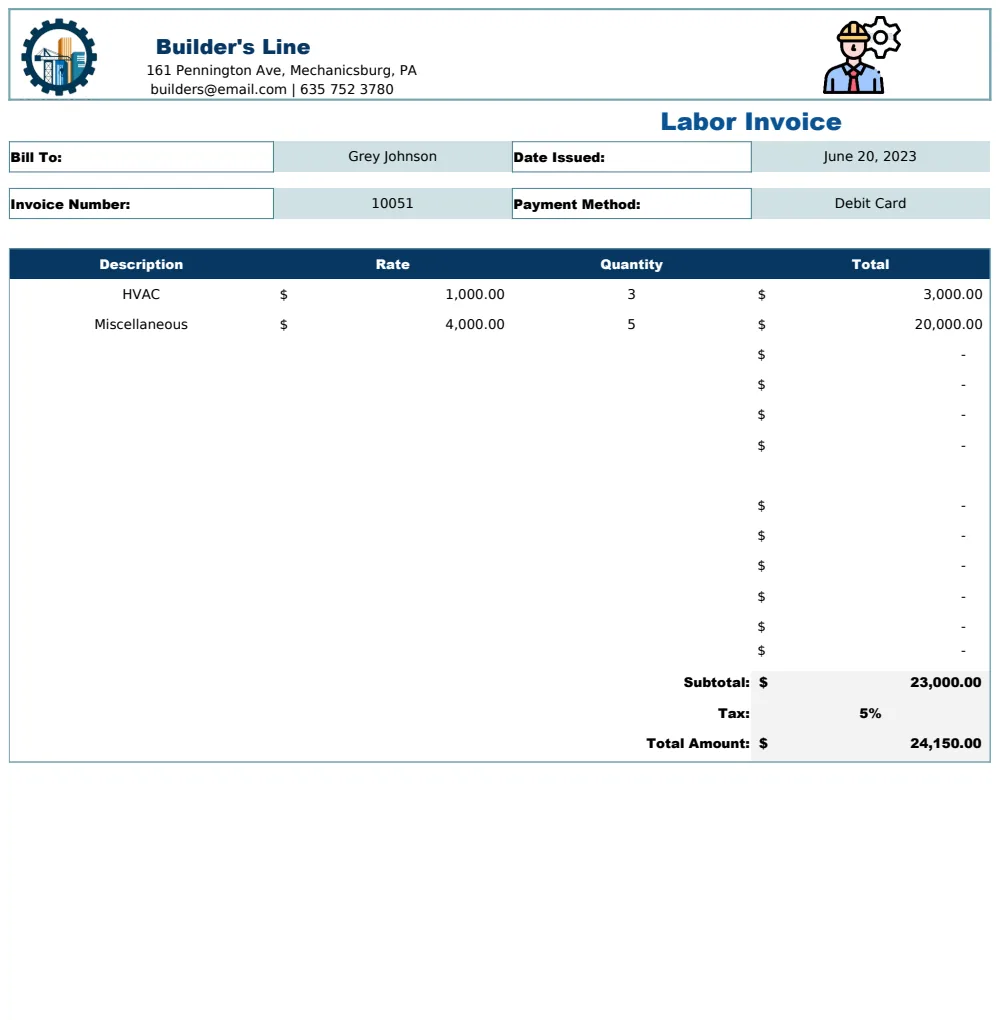
Most Excel invoices are a one-page template that you copy, rename and retype. Change the customer name, paste in the address, look up last month's price, bump the invoice number by one, save as PDF. It works for ten invoices a month. At fifty it starts to go wrong: a duplicated number, a price that changed in one file and not another, a customer you forgot to chase because nothing tells you which invoices are still unpaid.
A fully automatic invoice works differently. Customers and products live in their own tables, once. Each invoice is a row that picks from those tables, so addresses, prices and tax fill themselves in. Numbers are generated, totals are calculated, and a register shows what is paid, what is owed and what is overdue. This guide builds that system in Excel without macros, step by step, with the formulas and a full worked invoice.
What makes an invoice "automatic"
Four things separate an automatic invoice from a typed one:
- 01A database. Customer details and the price list are stored once and looked up, never retyped.
- 02Generated numbers. The invoice number appears by itself, in sequence, and never changes.
- 03Calculated amounts. Line totals, discounts, shipping, tax and the balance due are formulas.
- 04A register. Every invoice sits in one list with its payments, status and days overdue.
The printable invoice is then just a view: you choose a number and the page builds itself. The rest of this guide covers each part in the order you build it.
Step 1: set up the customer database
Create a sheet called Customers with one row per customer and these columns: Customer ID, Name, Billing address, Shipping address, Email, Payment terms (days), Tax status and Credit limit.
Turn the range into an Excel Table (Insert, then Table) or give each column a named range, such as CustName and CustTerms. Names make every later formula readable: INDEX(CustTerms, MATCH(...)) instead of a block of cell references.
The two columns that earn their place are payment terms and tax status. With terms stored per customer, the due date calculates itself. With tax status stored, a tax-exempt customer never gets taxed by accident.
Step 2: set up the product and service price list
On a Products sheet, list every item you sell: Item code, Description, Unit, Price and Tax code. A service such as "Extra support hours" and a physical product sit in the same list.
On a Settings sheet, define your tax codes and rates, for example Standard at 10 percent, Reduced at 5 percent and Exempt at 0. Each product carries a code, and the rate is looked up from it. When a rate changes, you change it in one place.
Step 3: automatic invoice numbering without macros
Many guides say you need a macro to number invoices. You do not. Pre-build the numbers and reveal them as you use them.
On the Invoices sheet, each row already has its sequence position. The number is a prefix plus a counter:
=IF(B5="", "", Prefix & TEXT(StartNumber + ROW() - ROW($A$4) - 1, "0000"))
Here B holds the invoice date, Prefix is something like INV- and StartNumber is your first number. A row shows a number only once its date is filled in, so filling the next empty row gives you the next number. With a start number of 1031, the row after INV-1042 reads INV-1043.
Because the number depends on the row, never delete or sort rows. If you make a mistake, mark the invoice as Void in a status column. Voided numbers stay in the sequence, so there are no gaps in your numbering to explain, and the numbers of every other invoice stay the same.
Step 4: the invoice header
For each invoice row, you enter only two things: the date and the customer. Pick the customer from a dropdown: Data, Data Validation, List, with =CustName as the source.
Everything else is looked up:
- Payment terms:
=INDEX(CustTerms, MATCH(C5, CustName, 0)) - Due date:
=B5 + terms - Tax-exempt flag:
=INDEX(CustTax, MATCH(C5, CustName, 0))
Use INDEX with MATCH rather than XLOOKUP. XLOOKUP is missing from older versions of Excel, while INDEX with MATCH works in all of them, so the file opens correctly for anyone you send it to.
Step 5: invoice lines that fill themselves in
On an Invoice Lines sheet, each line has an invoice number, an item and a quantity. Pick the item from a dropdown of the product list. The rest comes from the database:
- Description:
=INDEX(ProdDesc, MATCH(E2, ProdCode, 0)) - Price:
=IF(G2<>"", G2, INDEX(ProdPrice, MATCH(E2, ProdCode, 0))) - Tax code:
=INDEX(ProdTax, MATCH(E2, ProdCode, 0)) - Line total:
=Qty * Price * (1 - LineDiscount)
The price formula looks for a typed override first. That matters: you can look up the standard price by default and still type over it for a one-off job, without destroying the price list or the formula.
Step 6: discounts, shipping and tax
Total each invoice with SUMIFS on the lines sheet.
- Subtotal:
=SUMIFS(LineTotal, LineInvoice, InvoiceNo) - Invoice discount:
=Subtotal * DiscountRate - Tax by rate: for each tax code,
=SUMIFS(LineTotal, LineInvoice, InvoiceNo, LineTaxCode, code) * (1 - DiscountRate) * rate
Apply the invoice discount to the tax base too. Otherwise you charge tax on money you are not collecting. For a tax-exempt customer, multiply each tax amount by zero.
- Total:
=Subtotal - Discount + Shipping + SUM(tax amounts)
Showing tax by rate, one row per code, is both clearer for the customer and what most tax authorities want to see.
Step 7: a worked example
A fictional IT services firm invoices Brightwell Dental Group on 4 November 2026. The customer's terms are 30 days, so the due date is 4 December. Shipping is 35.00 and is not taxed.
| Item | Qty | Price | Line discount | Line total | Tax |
|---|---|---|---|---|---|
| Managed IT support, monthly | 1 | 950.00 | none | 950.00 | Standard 10 percent |
| Extra support hours | 6 | 85.00 | 10 percent | 459.00 | Standard 10 percent |
| Network switch, 24-port | 2 | 310.00 | none | 620.00 | Standard 10 percent |
| Printed cabling guide | 3 | 24.00 | none | 72.00 | Reduced 5 percent |
Working down:
| Amount | |
|---|---|
| Subtotal | 2,101.00 |
| Invoice discount, 5 percent | -105.05 |
| Net after discount | 1,995.95 |
| Shipping | 35.00 |
| Tax, Standard 10 percent on 1,927.55 | 192.76 |
| Tax, Reduced 5 percent on 68.40 | 3.42 |
| Total | 2,227.13 |
The invoice is numbered INV-1043 because it is the next row on the register. The customer pays 1,000.00 on 20 November, a part payment, so 1,227.13 remains. The standard-rate tax base of 1,927.55 is the 2,029.00 of standard-rate lines after the 5 percent discount, and the reduced-rate base of 68.40 is 72.00 after the discount.
Step 8: payments and the invoice register
A register turns a pile of invoices into a picture of what you are owed. Record payments on their own sheet: date, invoice number, amount. Then for each invoice:
- Paid so far:
=SUMIFS(PayAmount, PayInvoice, InvoiceNo) - Balance due:
=Total - Paid - Days overdue:
=IF(Balance>0, MAX(0, StatusDate - DueDate), 0) - Status:
=IF(Void="Void", "Void", IF(Balance<=0, "Paid", IF(StatusDate>DueDate, "Overdue", IF(Paid>0, "Part paid", "Open"))))
Use a status date cell instead of TODAY(), so a report you run for a meeting does not change when you reopen the file next week. The order of the tests matters: an invoice that is part paid and past its due date should read Overdue, because that is the one to act on.
In the example, INV-1043 is Part paid on 20 November. On 10 December, six days after the due date, the same invoice reads Overdue with 6 days overdue and 1,227.13 outstanding. Nobody had to remember to look.
Step 9: customer statements
A statement lists everything a customer has been invoiced and has paid, with a running balance. Pick a customer and a period, then:
- Balance brought forward: invoices before the period start minus payments before it.
- Lines: invoices and payments in the period, in date order.
- Running balance: the previous balance plus the invoice, or minus the payment.
For Brightwell, with a balance of 1,480.00 brought forward from an earlier invoice, November looks like this:
| Date | Document | Charge | Payment | Balance |
|---|---|---|---|---|
| 1 Nov | Balance brought forward | 1,480.00 | ||
| 4 Nov | INV-1043 | 2,227.13 | 3,707.13 | |
| 12 Nov | Payment | 1,480.00 | 2,227.13 | |
| 20 Nov | Payment | 1,000.00 | 1,227.13 |
The closing balance of 1,227.13 matches the invoice register, which is the check that proves the two sheets agree. Add an aging row underneath that splits the balance by days overdue: =SUMIFS(Balance, Customer, c, DaysOverdue, ">0", DaysOverdue, "<=30") for the first bucket, and so on for 31 to 60 and over 60.
Step 10: the printable invoice
The invoice page reads whichever number you type into a selector cell. Pull the header with INDEX and MATCH. For the lines, add a helper column on the lines sheet that counts matching lines:
=IF(LineInvoice=Selected, COUNTIF($A$2:A2, Selected), "")
Then row 1 of the printed invoice fetches the line whose helper equals 1, row 2 the line equal to 2, and so on: =IFERROR(INDEX(LineDesc, MATCH(1, Helper, 0)), ""). Rows with no match stay blank, so a three-line invoice and a ten-line invoice use the same page.
Finish with the totals block, your payment instructions and a status stamp that reads from the register, so the document says Paid, Part paid, Open or Overdue as the facts change. Set the print area to one page and use Save as PDF to send it.
Mistakes that break automatic invoices
- Deleting or sorting rows. Numbers come from the row, so mark mistakes Void instead.
- Typing prices on the invoice. Keep them in the price list, with an override column for the exception.
- Taxing the full amount after a discount. Tax the discounted base.
- Using `TODAY()` in the status. Reports change by the day. Use a status date.
- One tax rate for everything. Products and customers differ. Store a code per product and a status per customer.
- No customer statement. An invoice shows one document. A statement shows what the customer actually owes, which is what you want when you chase.
- No register. If the only record is a folder of PDFs, you will lose track of overdue invoices.
An automatic invoice workbook that is already built
You can build every part above yourself, but linking the lookups, numbering, tax, payments, register and statements without breaking a reference takes many hours. The Fully Automatic Invoice in Excel with Customer & Product Database has all of it ready.
Keep customers once, with billing details, default payment terms, tax status and credit limit, and products and services once, with description, unit, price and tax code. To raise an invoice, fill the next row on the Invoices tab with the date and customer: the number appears from your prefix and starting number, the terms come from the customer and the due date is worked out. On Invoice Lines, pick the invoice and the item and type the quantity, and the description, price and tax code fill in from the price list, which you can type over for a one-off. Line discounts, an invoice discount, shipping and several tax rates are handled, and tax-exempt customers pay no tax.
The Invoice tab builds a printable invoice from the number you pick, with bill to and ship to, tax by rate, payments, balance due, your payment instructions and a Paid, Open, Part paid or Overdue stamp, and you can add your logo. Record payments, including part payments, and the register shows what is paid, owed and overdue with days overdue and days to pay. The Statement tab gives each customer a statement with a running balance and aging, and the Dashboard shows invoiced and collected by month, outstanding and overdue amounts, top customers and top products. It holds 1,000 invoices, 5,000 invoice lines, 2,000 payments, 300 customers and 500 products, locks its formulas without a password and contains no macros.
If a simpler invoice is enough, these templates may help:
Common questions
How do I make an automatic invoice in Excel?
Keep customers and products in their own tables, give each invoice a row with a customer, and add lines that pick items from the price list. Lookups with INDEX and MATCH fill in the address, description, price and tax, and the printable invoice reads everything for the number you choose.
How does automatic invoice numbering work without macros?
Each row on the invoice list has a fixed number built from a prefix and a counter based on its position, and it appears once the date is filled in. Numbers never change, so mark mistakes as Void instead of deleting rows.
Can I use different tax rates and tax-exempt customers?
Yes. Define tax codes and rates on a settings sheet, give each product a code and mark exempt customers, so their tax comes to zero. The invoice then shows tax by rate.
How do I handle part payments?
Record each payment against its invoice. The balance is the total minus the payments received, and the status reads Part paid until it clears, or Overdue once it passes the due date.
How do I know which invoices are overdue?
Compare a status date with each invoice's due date while the balance is above zero. The register then shows days overdue, and you can total the amounts by age.
Can I send customers a statement?
Yes. List a customer's invoices and payments for a period with a running balance, the amount due and an aging split.
Does it work in Google Sheets?
The template is built for Microsoft Excel 2016 or later (desktop or Excel for the web). You can import it into Google Sheets, but sheet protection and images do not carry over, and charts may look different, so Excel is the better fit.
Invoicing becomes much less work when the database, the numbers and the register do the remembering. You can preview the Fully Automatic Invoice in Excel with Customer & Product Database free; downloading it is included in the OpenWorksheet monthly plan, and you can also buy this template on its own. The business, customer and figures in this guide are a fictional example, and this is general information rather than tax or accounting advice.