Master the =AI() Function in Google Sheets: 5 Pro Tips for 2026
Google Sheets now offers a powerful new tool for data analysis: the =AI function. This transformative feature brings large language model capabilities directly into your cells, streamlining tasks that...

Google Sheets now offers a powerful new tool for data analysis: the =AI() function. This transformative feature brings large language model capabilities directly into your cells, streamlining tasks that once required complex custom scripts or external tools. It's a game-changer for anyone looking to analyze data faster and more efficiently.
Unlock AI Power in Google Sheets: The =AI() Function Explained
The =AI() function, powered by Gemini, is Google's answer to integrating artificial intelligence directly into your spreadsheets. This isn't just another formula; it allows you to perform sophisticated text analysis like sentiment scoring, categorization, summarization, and even content generation with a single line of code. Its deep integration with Gemini AI became a core feature of Google Sheets in 2026.
What is the =AI() Function and Why It Matters Now
The =AI() function provides immediate access to AI processing for your data. You can feed it text from a cell and ask it to perform various analytical tasks. This matters because it eliminates the need to export data, use separate AI platforms, or write custom code for common analytical problems. For instance, the =AI() function can process 800 rows in seconds for tasks like categorization, a task that previously took hours of manual effort.
Getting Started: Enabling and Using =AI() in Your Spreadsheets
The =AI() function is available to all standard Google Workspace users at no additional cost. To start, simply open a Google Sheet and type =AI() into any cell, just like you would with any other formula. Google Sheets will automatically recognize the function and provide syntax suggestions. You'll then input your text and a clear prompt describing the task you want the AI to perform.
Practical Applications: Common Use Cases for =AI()
The =AI() function excels in several practical scenarios, offering immediate value across various data types. It handles text generation, data categorization, sentiment analysis, and information extraction across entire columns with a single formula.
Sentiment Analysis: Understanding Customer Feedback
You can quickly gauge the emotional tone of customer reviews, social media comments, or survey responses. For example, use =AI(B2, "Analyze the sentiment of this text and return 'Positive', 'Negative', or 'Neutral'") to score feedback in cell B2. This provides an instant overview of customer satisfaction.
Data Categorization: Organizing Unstructured Information
Categorizing unstructured text, such as support tickets or product reviews, becomes effortless. Imagine having a column of customer inquiries; you can use =AI(C2, "Categorize this support ticket into 'Technical Issue', 'Billing Inquiry', 'Feature Request', or 'General Question'") to automatically sort them. This speeds up routing and analysis.
Text Summarization: Condensing Long-Form Content

Generating concise summaries from longer text inputs saves significant time. If you have meeting notes or research papers in your sheet, =AI(D2, "Summarize this text in one concise sentence") can extract the core message. This is perfect for quick overviews without reading the entire document.
Content Generation: Drafting Text Directly in Cells
You can even use =AI() to draft short descriptions, email snippets, or ad copy directly within your cells. For instance, =AI("Write a short, engaging product description for a smart thermostat") can generate marketing text. This accelerates content creation workflows, especially for repetitive tasks.
Step-by-Step Tutorial: Analyzing Customer Reviews with =AI()
Let's walk through a concrete example: analyzing customer reviews to extract sentiment and keywords. This workflow provides actionable insights from qualitative data.
Setting Up Your Data for AI Analysis
Start with your customer reviews in a single column, say column B. Ensure each review occupies its own cell. Add new columns next to it for "Sentiment" (Column C) and "Keywords" (Column D). This structure keeps your data organized and ready for the =AI() function.
Applying the =AI() Formula for Sentiment and Keywords
In cell C2, enter the formula for sentiment: =AI(B2, "Analyze the sentiment of this customer review and return 'Positive', 'Negative', 'Neutral', or 'Mixed'"). Drag this formula down to apply it to all reviews. For keywords, in cell D2, use: =AI(B2, "Extract up to three main keywords or topics from this customer review, separated by commas"). Again, drag to fill.
Interpreting and Visualizing Your AI Results

Once the formulas populate, you'll have instant sentiment scores and keywords for every review. You can then create simple charts, like a pie chart for sentiment distribution, or a word cloud for frequently occurring keywords. This helps visualize trends and identify common themes in customer feedback.
Recommended Resources
Skip the blank-sheet setup
Start with pre-built dashboards and analyses, then customize to your needs.
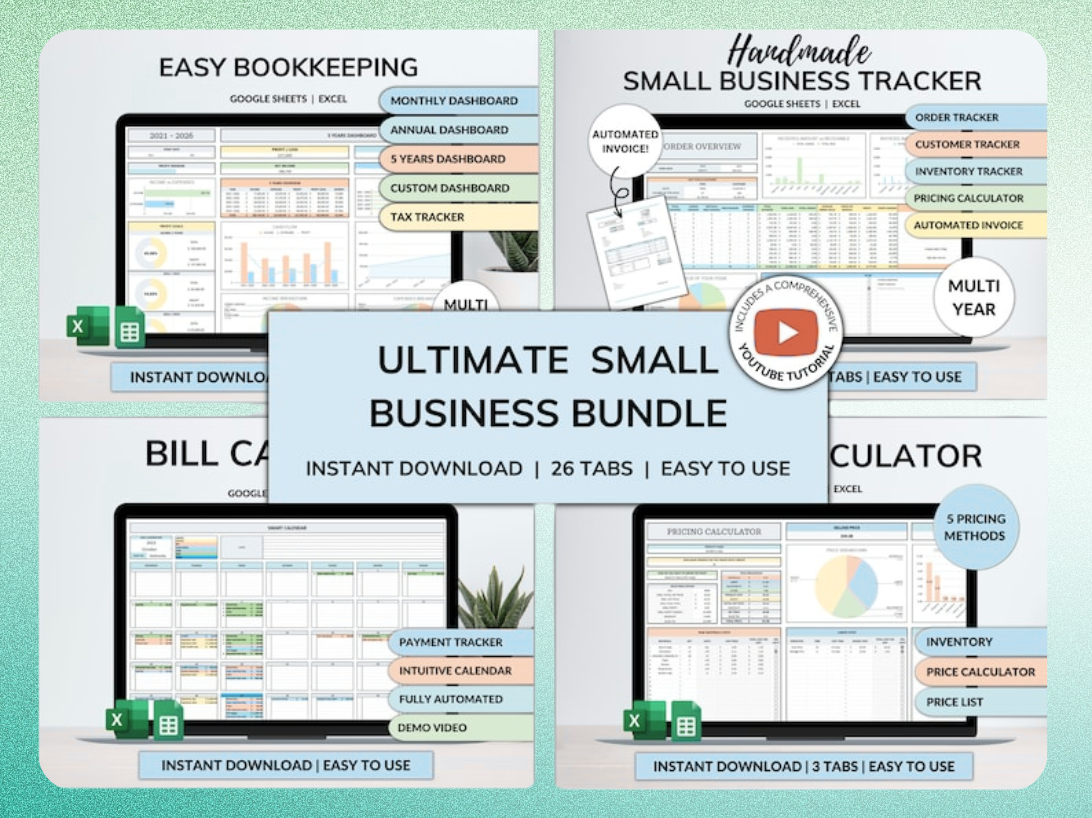
Ultimate Small Business Bundle Templates - Google Sheet + Ms Excel
All-in-One Spreadsheets for Bookkeeping, Inventory, Orders, Billing & Pricing Save Hours Every Week: Automate data entry and dashboards so you can focus on growth, not spreadsheets.
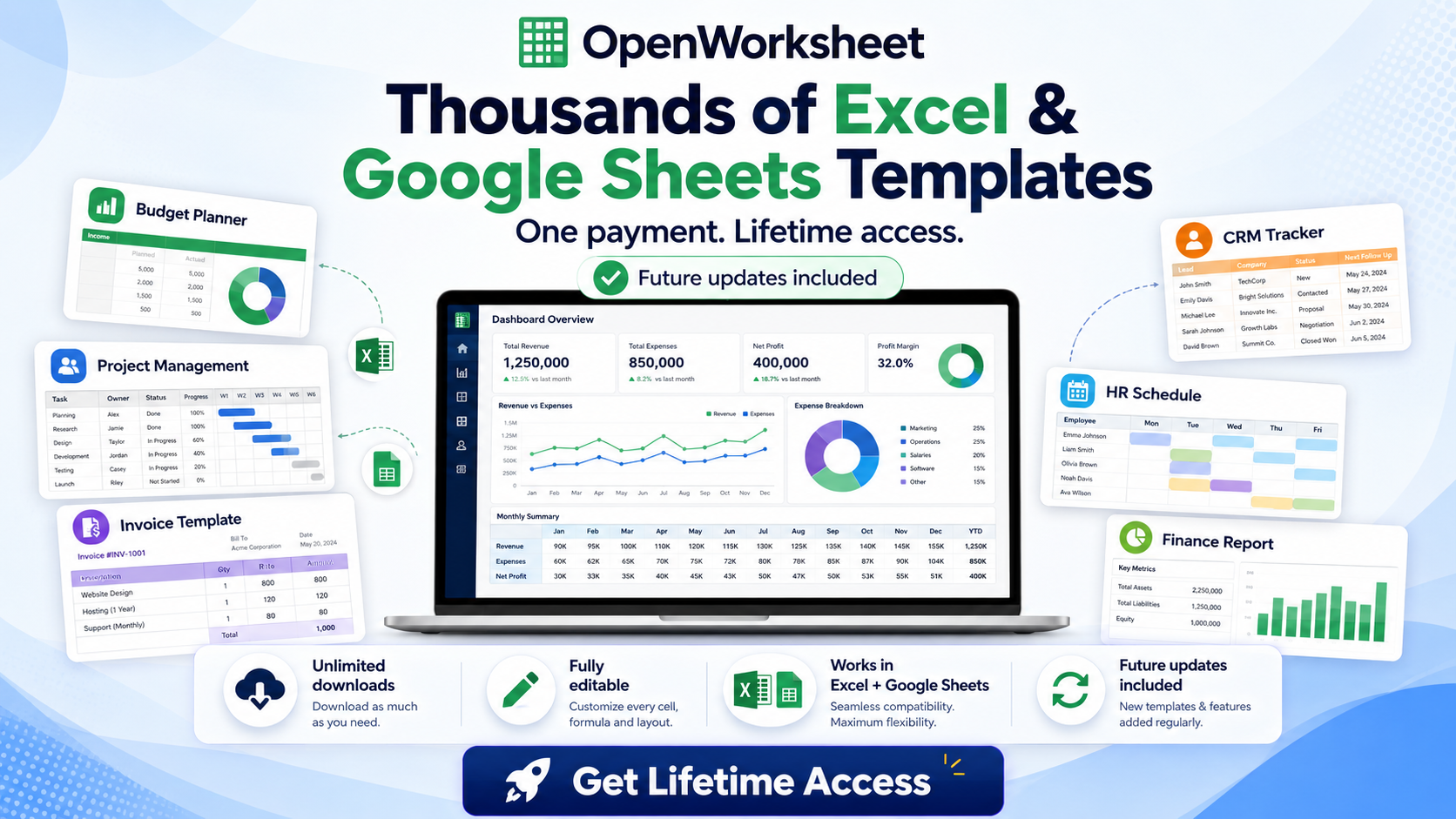
Thousands of Spreadsheet Templates Mega Library – Google Sheet Supported
Advanced Strategies: Optimizing =AI() for Performance and Accuracy
While powerful, =AI() requires thoughtful application, especially for larger datasets. Understanding these strategies helps you maximize its effectiveness.
Structuring Prompts for Better AI Outcomes
Crafting effective prompts is crucial. Be specific, provide context, and define the desired output format. Instead of "Summarize this," try "Summarize this article into three bullet points, focusing on key takeaways for small business owners." Clear instructions yield better, more consistent results.
Managing Large Datasets and Performance Considerations
One important thing to know: =AI() results aren't cached. Every time the sheet recalculates, the function runs again. For large datasets, this adds up fast. Use it on finalized data, not live-updating ranges, or copy and paste values once you have your results. This prevents unnecessary recalculations and performance slowdowns.
Combining =AI() with Other Google Sheets Functions
Integrate =AI() into broader spreadsheet workflows. You can use IF statements to trigger =AI() only under certain conditions, or ARRAYFORMULA to apply it efficiently to entire ranges. For example, =ARRAYFORMULA(IF(B2:B<>"", AI(B2:B, "Categorize this text"), "")) applies the categorization to all non-empty cells in column B.
Beyond the Cell: Integrating =AI() with Gemini Sidebar and Automation
The =AI() function is just one piece of Google's broader AI integration within Workspace. Gemini's capabilities extend beyond individual cells.
Conversational Analysis with the Gemini Sidebar
The Gemini sidebar in Google Sheets offers conversational analysis. You can ask it to generate charts based on your data, identify trends, or even help refine your =AI() prompts. The March 2026 update to Gemini in Sheets allows for complex optimization problems and synthesizing context across Google Drive. This deep integration makes data exploration more intuitive.
Automating AI Workflows with Google Apps Script
For repetitive tasks or complex multi-step processes, Google Apps Script can extend =AI() capabilities. You can write scripts to trigger =AI() functions, process their output, and even update other sheets or send notifications. This automates entire workflows, saving significant manual effort.
=AI() vs. Third-Party AI Add-ons: When to Use What
Google's native =AI() function offers distinct advantages, but third-party add-ons still have their place for specialized needs.
Native =AI() for Quick, In-Cell Operations
The native =AI() function is ideal for immediate, formula-based tasks directly within your sheet. It's free for Workspace users, requires no external setup, and is deeply integrated into the Sheets environment. It excels at quick text analysis, categorization, and content generation without leaving your spreadsheet.
When to Consider Add-ons like Numerous.ai or SheetAI
Third-party add-ons like Numerous.ai or SheetAI might offer more specialized features, integrations with other tools, or advanced models not yet available natively. If you need highly specific AI models, robust caching mechanisms, or integrations with non-Google platforms, these add-ons can provide additional functionality. They often come with subscription costs, so weigh the features against your budget.
Ready-Made Solutions: Templates to Jumpstart Your AI Analysis
Starting from a blank sheet can be daunting. Pre-built templates provide a structured foundation, allowing you to leverage =AI() immediately without extensive setup.
Streamline Your Business with AI-Powered Templates
For small business owners, freelancers, and managers, the Ultimate Small Business Bundle Templates offers an all-in-one solution. These templates are designed for bookkeeping, inventory, orders, billing, and pricing, and can be enhanced with =AI() for tasks like categorizing expenses or generating product descriptions. They automate data entry and dashboards, letting you focus on growth, not spreadsheets.
Explore a Library of AI-Enhanced Spreadsheet Templates
To access a wider range of pre-designed solutions, consider the Thousands of Spreadsheet Templates Mega Library. This library provides lifetime access to a vast collection of templates compatible with Google Sheets and Excel. You can find templates for almost any business or personal need, many of which are ready for =AI() integration to supercharge your data analysis and workflows.
Get the newsletter
One sharp idea every Sunday.
No fluff. No sales pitches. Just the best of what we publish, hand-picked.
Continue Reading
Related Articles

Automate Sales CRM: 5 AI Workflows for Google Sheets in 2026
Sales teams today face relentless pressure to close deals faster and more efficiently. Traditional sales processes, burdened by manual data entry and disjointed systems, simply can't keep pace. Integr...
Excel vs Google Sheets 2026: 7 Key Differences & AI Features
Choosing between Excel and Google Sheets in 2026 isn't about picking the "better" tool. It's about matching the platform to your workflow, team size, and technical requirements. The gap between these...

Google Sheets AI: 7 Powerful Tools & the New =AI() Function (2026)
Google Sheets stopped being just a place to store numbers the moment AI moved in. As of June 2026, you can ask a spreadsheet to score leads, categorize customer feedback, write formulas in plain Engli...