Organize rental income with this free spreadsheet
Build a custom property management spreadsheet to track rent, tenants, and expenses for your rental business.
By the end of this, you'll have a functional property management system in a spreadsheet, capable of tracking rent payments, tenant details, maintenance requests, and property expenses, all with automated summaries. This isn't just a list of data points; it's a tool designed to give you a clear overview of your rental income and expenditures, helping you identify trends and manage your properties more effectively. Many search for a property management spreadsheet template free because they need a low-cost, accessible way to organize their rental business.
This guide will walk you through building a custom spreadsheet from scratch. While dedicated software exists, a well-structured spreadsheet can be incredibly powerful and adapt to your specific needs without ongoing subscription fees. We'll cover the essential components, formulas, and formatting to make your spreadsheet a reliable asset for your property management tasks.
Setting Up Your Core Property Data
Start by creating a new spreadsheet and dedicating the first sheet to your core property information. This sheet acts as your central database for each rental unit you manage.
Here are the essential columns to include:
- Property ID: A unique identifier for each property (e.g., P101, P102).
- Property Address: The full street address.
- Unit Number: If applicable, the specific unit number (e.g., Unit A, 3B).
- Property Type: (e.g., Single Family Home, Apartment, Commercial).
- Owner Name: The name of the property owner.
- Owner Contact: Owner's phone number or email.
- Acquisition Date: The date you acquired the property.
- Purchase Price: The initial cost of the property.
- Current Market Value: An estimated current valuation.
- Square Footage: The total area of the property.
- Number of Bedrooms:
- Number of Bathrooms:
- Year Built:
- Notes: Any general remarks about the property.
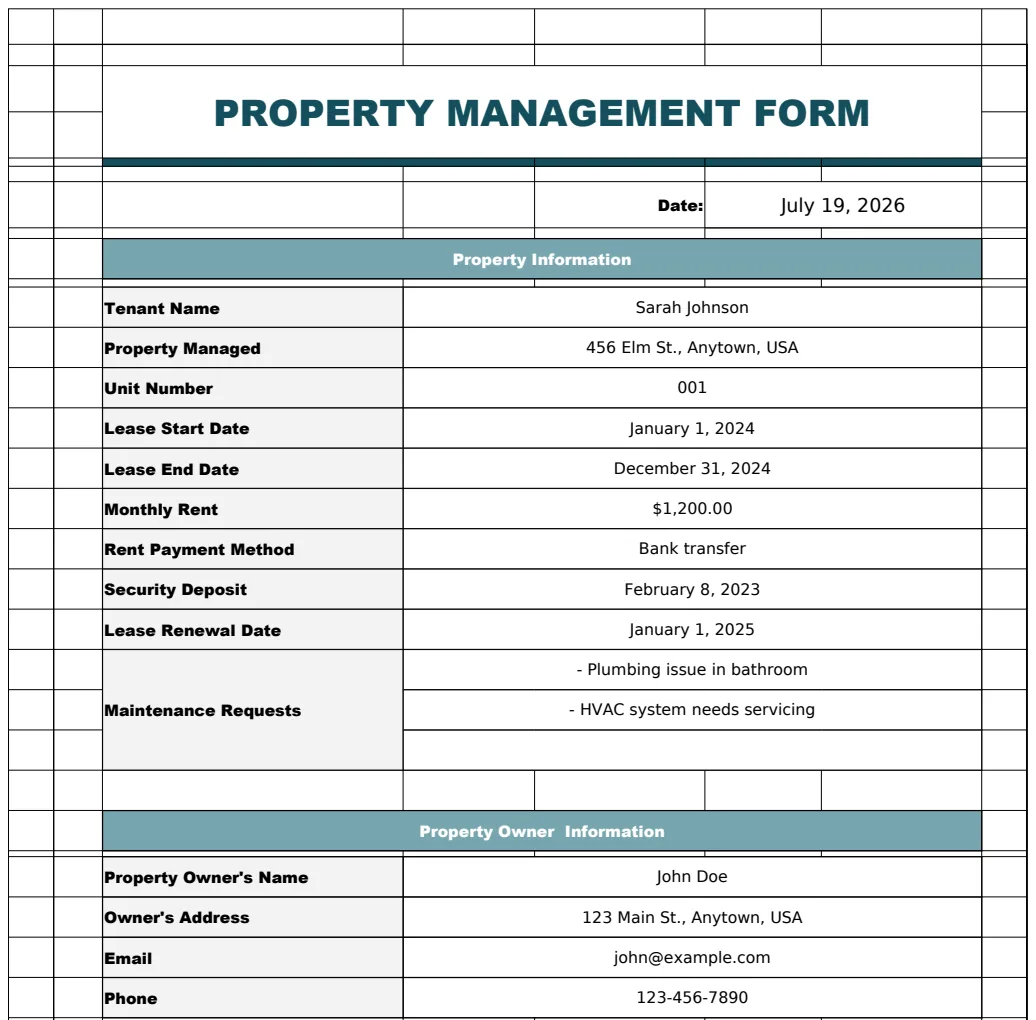
This sheet is foundational. Think of it as the header information for all other records. You can use a template like the Property Management Form Template to help organize these initial details efficiently.
Tenant and Lease Management
Next, create a sheet specifically for tenant and lease information. This is where you’ll track who is renting your properties, for how long, and under what terms. Accurate tenant records are crucial for smooth operations.
Essential columns for this sheet include:
- Tenant ID: A unique ID for each tenant or lease agreement.
- Property ID: Link this to the Property ID in your core data sheet.
- Tenant Name: Full name of the primary tenant.
- Tenant Contact (Phone):
- Tenant Contact (Email):
- Lease Start Date:
- Lease End Date:
- Rent Amount: The monthly rent due.
- Rent Due Day: The day of the month rent is due.
- Security Deposit: Amount of the security deposit.
- Lease Status: (e.g., Active, Expired, Notice Given).
- Move-in Date: The actual date the tenant occupied the property.
- Move-out Date: The actual date the tenant vacated.
- Notes: Specific lease terms, pet clauses, etc.
This sheet is vital for tracking lease expirations and managing tenant turnover. For a more visual representation of your leases, consider using a Tenancy Schedule Template to monitor multiple lease terms simultaneously.
Rent Collection and Payment Tracking
This is arguably the most critical sheet for any property manager. It details every rent payment received, ensuring you don't miss income.
Columns to include:
- Payment ID: A unique ID for each payment transaction.
- Tenant ID: Link to the tenant in your Tenant sheet.
- Property ID: Link to the property.
- Payment Date: The date the rent was received.
- Payment Period Start: The beginning date of the rental period this payment covers (e.g., 2024-01-01).
- Payment Period End: The ending date of the rental period (e.g., 2024-01-31).
- Amount Paid: The amount received.
- Payment Method: (e.g., Bank Transfer, Check, Online Portal).
- Status: (e.g., Paid, Pending, Late, Overdue).
- Late Fee Applied: The amount of any late fee charged.
- Notes: Any specific details about the payment.
To automate your rent tracking, you can use formulas. For example, in a separate summary sheet, you can use SUMIFS to calculate the total rent collected for a specific property or tenant over a given period.
Example Formula for Total Rent Collected for Property P101 in January 2024:
=SUMIFS('Rent Payments'!E:E, 'Rent Payments'!C:C, "P101", 'Rent Payments'!D:D, ">=2024-01-01", 'Rent Payments'!D:D, "<=2024-01-31")
This formula sums the values in column E ('Amount Paid') from the 'Rent Payments' sheet, but only for rows where column C ('Property ID') is "P101" and column D ('Payment Date') falls within January 2024.
Maintenance and Repair Log
Keeping track of maintenance is essential for property upkeep and tenant satisfaction. This sheet logs all reported issues and their resolutions.
Essential columns:
- Request ID: Unique identifier for each maintenance request.
- Property ID: Link to the property.
- Tenant ID: Link to the tenant who reported it.
- Date Reported:
- Issue Description: Detailed explanation of the problem.
- Reported By: (e.g., Tenant, Owner, Yourself).
- Assigned To: Who is handling the repair (e.g., Handyman Joe, Electrician Bob, Yourself).
- Date Assigned:
- Date Completed:
- Cost: The total cost of the repair.
- Invoice Number: If applicable.
- Status: (e.g., Open, In Progress, Resolved, On Hold).
- Notes: Any additional details.
This log helps you see patterns in maintenance needs for specific properties and track repair costs over time.
Expense Tracking
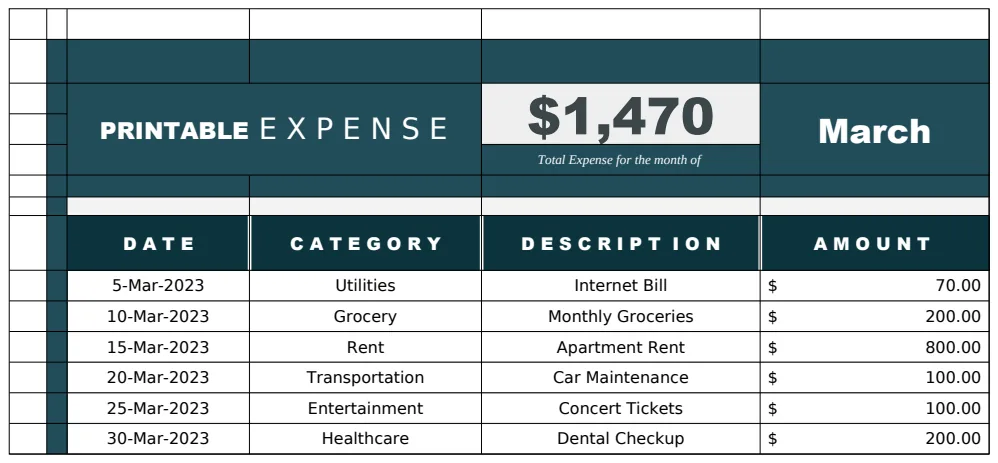
Beyond maintenance, you'll incur other expenses related to your properties, such as property taxes, insurance, utilities (if not paid by tenant), and management fees.
Columns to include:
- Expense ID: Unique identifier.
- Property ID: Link to the property.
- Date of Expense:
- Category: (e.g., Taxes, Insurance, Utilities, Repairs, Management Fee, Advertising).
- Description: Specifics of the expense.
- Amount:
- Payment Method:
- Receipt Attached (Y/N): Or a link to a scanned receipt.
- Notes:
This sheet is crucial for understanding your net income. You'll want to sum these expenses by category and property to get a clear financial picture.
Financial Summary and Dashboard
The real power of a spreadsheet system comes from its ability to summarize data. Create a new sheet for your dashboard. Here, you can pull data from your other sheets using lookup formulas and aggregation functions.
Key elements for your dashboard:
- Total Rental Income (Monthly/Annually): Use
SUMIFSon your 'Rent Payments' sheet. - Total Expenses (Monthly/Annually): Use
SUMIFSon your 'Expense Tracking' sheet, broken down by category. - Net Operating Income (NOI):
Total Rental Income - Total Expenses. - Occupancy Rate: Calculate this based on your 'Tenant and Lease Management' sheet and a calendar view. You could use the Availability Calendar to help visualize this.
- Average Rent per Square Foot: Compare this across properties.
- Maintenance Costs per Property: Sum from your 'Maintenance and Repair Log'.
- Upcoming Lease Expirations: Use
TODAY()and date comparisons on your 'Tenant and Lease Management' sheet. - Tenant Arrears Report: Highlight tenants whose rent status is 'Late' or 'Overdue'.
Formulas like XLOOKUP can be used to pull specific property data (like rent amount or address) into your summary sheet based on the Property ID. Conditional formatting can highlight overdue payments in red or properties with high maintenance costs in yellow.
Common Mistakes to Avoid
When building your property management spreadsheet template free, be mindful of these common pitfalls:
- Inconsistent Data Entry: Not using consistent naming conventions for properties, tenants, or categories. This makes formulas unreliable.
- Lack of Unique Identifiers: Not having unique IDs for properties, tenants, or transactions. This leads to confusion and difficulty in linking data.
- No Backup: Not regularly saving backups of your spreadsheet. Data loss can be devastating.
- Overly Complex Formulas: Trying to do too much in one formula. Break down complex calculations into smaller, manageable steps.
- Ignoring Untracked Expenses: Forgetting to log smaller but recurring expenses like minor repairs or property taxes.
Advanced Features and Next Steps
Once your core system is running smoothly, you can enhance it further. Consider adding sheets for:
- Vendor Contact List: For maintenance providers.
- Property Inventory: Track furniture, appliances, and fixtures in each unit. The Property Inventory Spreadsheet Template is excellent for this.
- Capital Expenditures: Track major upgrades like new roofs or HVAC systems, distinct from routine maintenance.
If your needs grow beyond what a spreadsheet can comfortably manage, or if you're looking for a more robust solution with automated features, explore dedicated property management software. Many libraries, like ours, offer a one-time purchase for unlimited template downloads, which can be a cost-effective way to access pre-built, professional templates for various business needs.
How do I link my property data to my tenant data?
You link them using a common identifier, most effectively a "Property ID." On your 'Tenant and Lease Management' sheet, add a "Property ID" column. When you enter a new tenant, you select the "Property ID" corresponding to the property they are renting from your 'Core Property Data' sheet. Formulas on other sheets, like your 'Rent Payments' sheet, can then use this "Property ID" to cross-reference and pull information from either the property or tenant sheets.
Can I track vacant properties with this system?
Yes. You can use your 'Tenant and Lease Management' sheet to identify vacant properties. A property is vacant if there are no active leases linked to its "Property ID" (i.e., the "Lease Status" is not "Active" and there's no upcoming "Move-in Date"). You could also create a dedicated "Occupancy Status" column on your 'Core Property Data' sheet, which you update manually or via a formula referencing the tenant sheet.
What if I have multiple units in one building?
Treat each unit as a separate entry on your 'Tenant and Lease Management' sheet, but ensure they all share the same "Property ID" from your 'Core Property Data' sheet. For example, if you have a duplex at 123 Main Street, your core data might list "123 Main Street" as Property ID P201. Then, on the tenant sheet, you would have two entries: one for "123 Main Street - Unit A" and another for "123 Main Street - Unit B," both using Property ID P201. This allows you to track income and expenses for the building as a whole, as well as for each individual unit.