Organize your wedding guest list with a free Google Sheet
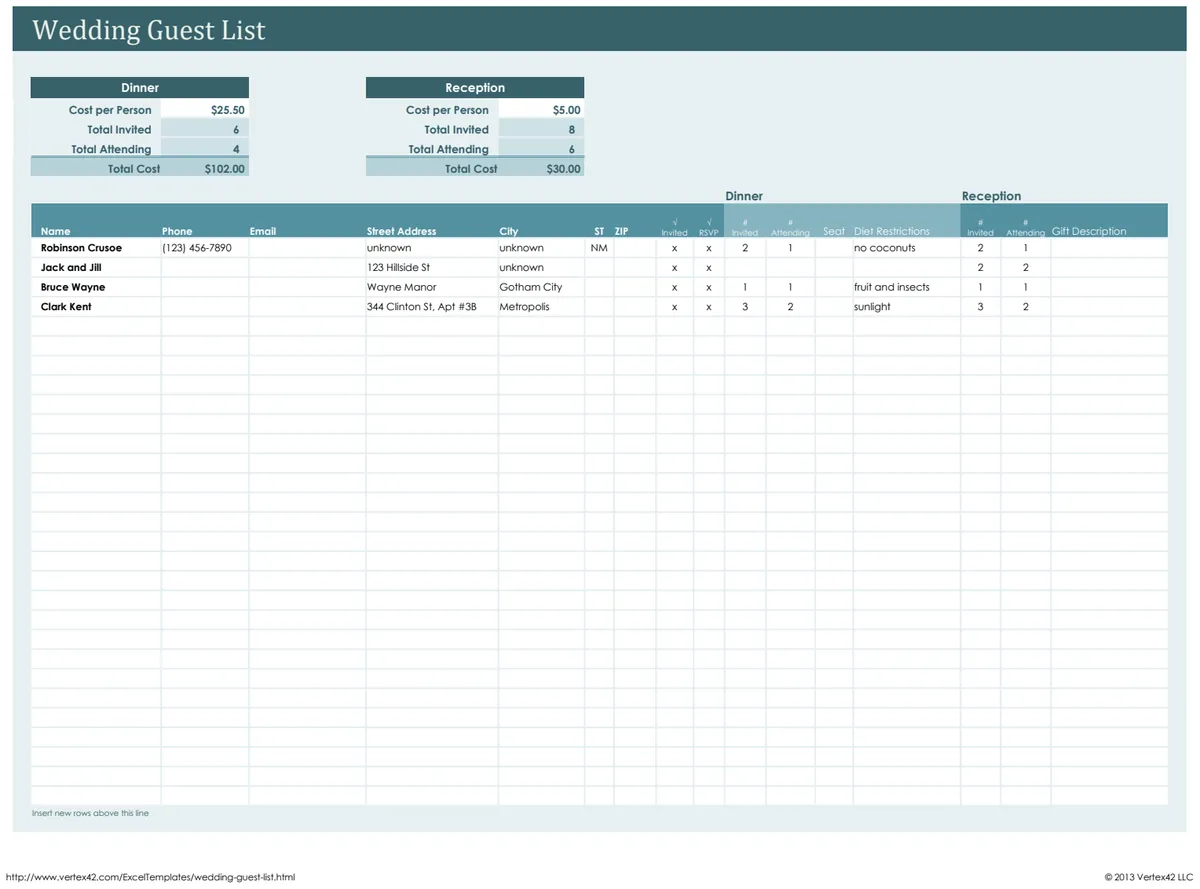
Manage your wedding guest list efficiently with a free Google Sheets template to track RSVPs, addresses, and gifts.
The moment you start planning your wedding, a single, overwhelming thought can surface: where do all these people actually sit? It’s the practical reality of your guest list, a document that quickly morphs from a hopeful headcount into a complex logistical puzzle. This is precisely why many people search for a wedding guest list template Google Sheets solution, needing a structured way to manage names, addresses, and crucial details.
A well-organized guest list template isn't just about names; it’s about managing relationships, tracking your budget, and ensuring every guest feels accounted for. Without a system, you risk overlooking details, double-booking vendors, or, worse, forgetting to invite someone important. Let’s build a robust system for your wedding guest list.
Defining Your Wedding Guest List Columns
The core of any useful template is its structure. For a wedding guest list, you’ll want columns that cover the essential information needed from invitation to reception. Start with the basics:
- Guest Name(s): Full names of individuals or couples.
- Household Name: A shorthand for the family or group, useful for grouping mailings or table assignments.
- Street Address: For mailing invitations.
- City: Part of the address.
- State/Province: Part of the address.
- Zip/Postal Code: Part of the address.
- Email Address: For digital communication, save-the-dates, or online RSVPs.
- Phone Number: For direct contact.
- Invitation Sent Date: Crucial for tracking when mailings went out.
- RSVP Status: Options like "Not Responded," "Attending," "Declined," "Pending."
- Number Attending: The actual count for catering and seating.
- Meal Choice: (e.g., Chicken, Fish, Vegetarian, Kid's Meal), essential for catering.
- Dietary Restrictions: Any allergies or special needs.
- Relationship to Couple: (e.g., Bride's Family, Groom's Friend, Colleague), helps with seating charts and understanding your guest demographics.
- Plus One Name: If applicable, to track their name.
- Gift Received: What was given, to help with thank-you notes.
- Thank You Sent Date: Tracks your post-wedding correspondence.
You might also add columns for "Save the Date Sent," "Wedding Website RSVP," or even "Accommodation Needs." The key is to tailor these to your specific wedding needs.
Setting Up Your Google Sheet
Google Sheets is an excellent choice for a wedding guest list template. It's free, accessible from anywhere, and allows for easy collaboration if you're sharing duties with a partner, family member, or planner.
Here’s a step-by-step walkthrough to get you started:
- 01Create a New Spreadsheet: Open Google Sheets and click "+ Blank" to start a new sheet.
- 02Name Your Sheet: Click on "Untitled spreadsheet" in the top-left corner and rename it to something clear, like "Our Wedding Guest List."
- 03Add Column Headers: In the first row (Row 1), type in the column names discussed above. Make them bold for clarity.
- 04Apply Data Validation for RSVP Status: This is a game-changer.
- Select the entire "RSVP Status" column (e.g., Column J, starting from Row 2).
- Go to Data > Data validation.
- Under "Criteria," choose "List of items."
- In the box, type:
Not Responded,Attending,Declined,Pending(separated by commas). - Ensure "Show dropdown list in cell" is checked. Click "Save." Now, each cell in that column will have a dropdown.
- 05Conditional Formatting for RSVP Status: Make your statuses visually distinct.
- Select the "RSVP Status" column again.
- Go to Format > Conditional formatting.
- Under "Format rules," choose "Text is exactly."
- For "Attending," set the background to a pleasant green. Click "Done."
- Click "Add another rule." For "Declined," set the background to a light red or grey. Click "Done."
- Add rules for "Not Responded" (maybe yellow) and "Pending" (perhaps a light blue). This visual cue helps you see attendance trends at a glance.
- 06Freeze Header Row: To keep your column names visible as you scroll down, click on Row 1, then go to View > Freeze > 1 row.
- 07Add Formulas for Totals:
- In a separate area (e.g., Row 2, Column M, if "Number Attending" is Column L), you can add a formula to count attending guests:
=SUMIF(J:J, "Attending", L:L). This will sum up the "Number Attending" for everyone marked as "Attending" in the RSVP Status column. - You can also count total households invited, total attending, etc., using
COUNTIFandSUMfunctions.
This setup provides a solid foundation for managing your wedding guest list. If your needs extend beyond just the guest list to include managing wedding expenses, a more integrated solution like the Wedding Guest List & Budget Tracker can be incredibly helpful.
Tracking RSVPs Effectively
The RSVP phase is often the most stressful. A clear system in your Google Sheet makes it manageable.
- Regular Updates: Make it a habit to update the "RSVP Status" and "Number Attending" columns as soon as you receive a response, whether it's an email, a phone call, or a mailed card.
- Follow-Up List: Create a separate tab or a filtered view of guests whose "RSVP Status" is "Not Responded" after your RSVP deadline. This list becomes your "chase list."
- Use Filters: Google Sheets' filter function is invaluable. Click the filter icon in the toolbar, then click the filter icon in any header. You can then sort by status, name, or relationship, or filter to show only "Attending" guests for seating chart planning.
For events where managing RSVPs and understanding guest responses is paramount, especially for formal invitations, the Wedding Invite Tracker offers automated summaries and visual reports that can significantly simplify this process.
Integrating with Budgeting
Your guest list directly impacts your budget. Catering, invitations, favors, and even venue size are all tied to your headcount.
- Column for Per-Person Cost: Add a column to your template for "Estimated Cost Per Person" for catering.
- Total Catering Estimate: Use a formula like
=SUMIF(J:J, "Attending", M:M) * AVG(P:P)(assuming J is RSVP Status, M is Number Attending, and P is Estimated Cost Per Person) to get a running total of your catering costs based on confirmed attendees. - Gift Tracking: The "Gift Received" and "Thank You Sent Date" columns are critical for proper etiquette and ensure you don't miss sending thank-you notes.
If you're looking for a template that combines guest management with a comprehensive budget breakdown, the Wedding Guest List & Budget Tracker is designed for exactly this purpose, helping you keep both aspects of your wedding planning in sync.
Handling Plus Ones and Families
Dealing with plus ones and entire families requires a consistent approach.
- Dedicated Plus One Column: As mentioned, having a "Plus One Name" column is essential. If they don't provide a name, you can enter "Guest of [Primary Name]".
- Household Grouping: The "Household Name" column is your best friend here. You can filter by this to see all members of a single family unit, ensuring they are seated together and receive all relevant communications.
- Consistency in Counting: Be clear about whether "Number Attending" refers to individuals or the total number of seats needed for a household. If a couple is attending, and they have two children, "Number Attending" should ideally be 4.
Common Mistakes to Avoid
- Not Updating Regularly: Letting your spreadsheet become outdated is the fastest way to create confusion. Make updates a weekly, or even daily, task during peak planning.
- Over-Complicating the Template: Start with the essential columns. You can always add more later if a specific need arises. Too many columns can make data entry tedious.
- Forgetting Dietary Needs: This is a critical detail for caterers. Ensure it's a prominent column and that you actively collect this information during the RSVP process.
- Not Planning for Follow-Ups: Assume you'll need to chase some RSVPs. Build this into your timeline and have a system for tracking who you've contacted.
- Ignoring the Digital Aspect: While mailing invitations is traditional, many guests prefer digital communication. Ensure your email addresses are accurate and consider how you’ll use them.
Frequently Asked Questions
Can I use this same structure for other events?
Yes, absolutely. The fundamental principles of tracking names, contact information, attendance, and specific needs are transferable. For instance, a Party Planner template uses similar logic but can be customized for birthdays, anniversaries, or corporate events. Even a smaller gathering like a dinner party benefits from organized guest and menu planning, which the Dinner Party List with Menu template addresses.
How do I handle guests who don't respond by the deadline?
Your "RSVP Status" column and filters are key. After your deadline, filter your list to show only those marked "Not Responded." Then, you can systematically call or email them. It’s often helpful to note the date and method of your follow-up contact in a separate "Follow-Up Notes" column.
What if my guest list changes significantly after I've sent invitations?
This is common. Simply update your Google Sheet as you receive new information. If you've already provided final numbers to a caterer, you'll need to communicate the changes to them directly. The beauty of a digital wedding guest list template Google Sheets solution is its flexibility for real-time adjustments.
How can I generate a seating chart from this data?
While the template itself doesn't automatically generate a seating chart, it provides all the necessary data. You can use filters to group guests by household or relationship. Then, you can manually assign tables by creating new columns like "Table Number" and filling them in. Some advanced users create a separate sheet with table layouts and copy-paste guest names, or use third-party tools that can import this data.