Real-Time Inventory: 5 Google Sheets Tracking Methods for 2026
Managing inventory effectively means the difference between profit and loss for many businesses. Stockouts frustrate customers, while overstocking ties up capital. Google Sheets offers a flexible, cos...
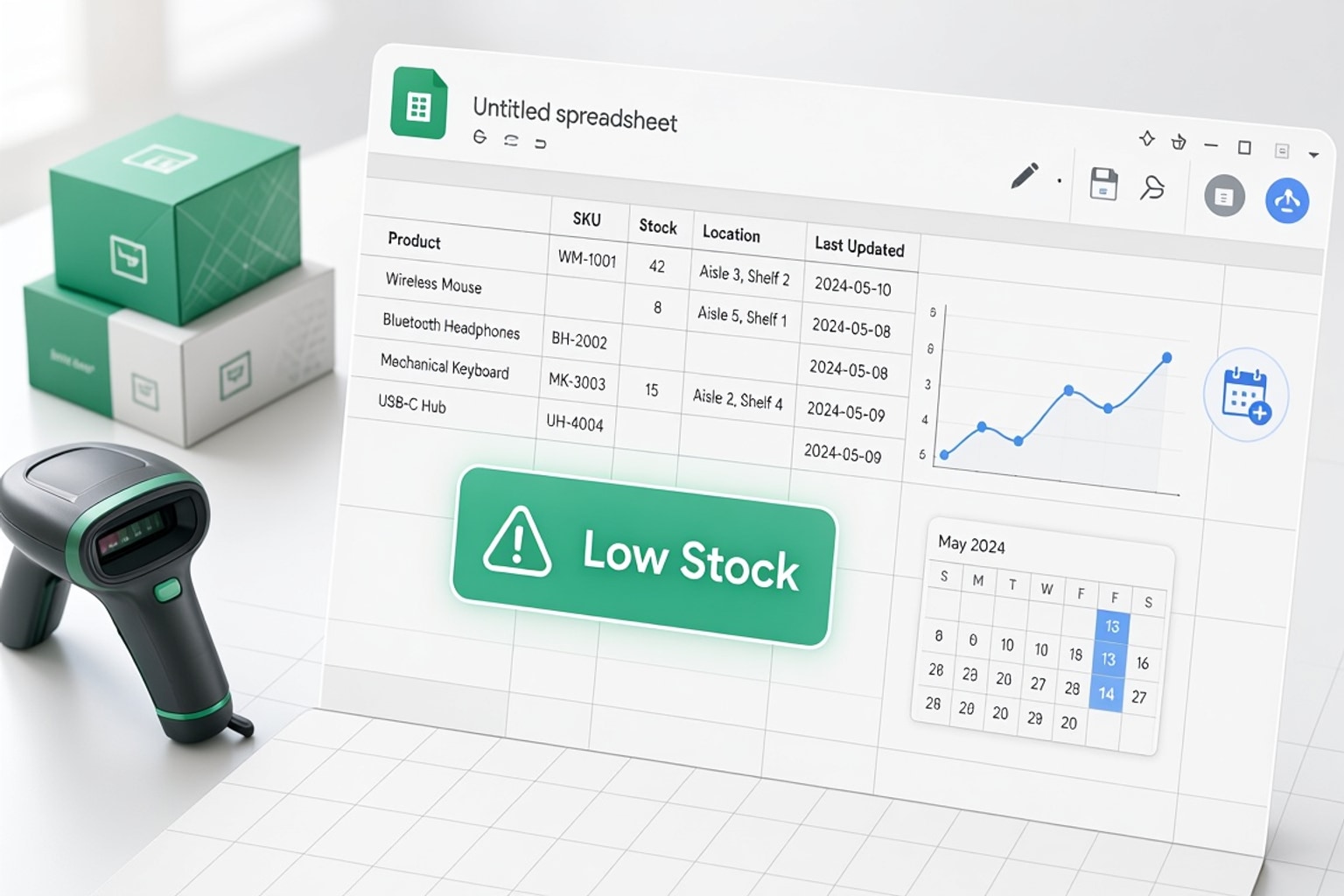
Managing inventory effectively means the difference between profit and loss for many businesses. Stockouts frustrate customers, while overstocking ties up capital. Google Sheets offers a flexible, cost-effective solution for real-time inventory tracking, especially for small to medium-sized operations.
The Challenge of Inventory: Why Stockouts and Overstocking Hurt Your Business
Running out of popular items means lost sales and damaged customer trust. Conversely, holding too much stock leads to spoilage, obsolescence, and increased storage costs. Finding that sweet spot requires precise, up-to-the-minute data.
The Hidden Costs of Poor Inventory Management
Poor inventory control directly impacts your bottom line. Excess stock incurs warehousing fees, insurance, and potential write-offs for unsold goods. Stockouts lead to expedited shipping costs, production delays, and customer churn. These hidden expenses erode profits quickly.
When Google Sheets Becomes Your First Line of Defense
Google Sheets provides an accessible platform for businesses to build custom inventory systems. Its collaborative features and integration with other Google services make it ideal for teams. For many, it's the simplest way to gain immediate control over stock levels.
Building Your Real-Time Inventory Tracker in Google Sheets
Setting up an effective inventory tracker in Google Sheets starts with a structured approach. You need clear data points and reliable formulas to generate actionable insights. This guide helps you build that system.
Essential Columns for Accurate Stock Tracking
Start with fundamental columns: Item ID, Product Name, Description, Supplier, Unit Cost, Selling Price, Current Stock, Reorder Point, Units Sold (Daily/Weekly), and Last Update Date. These fields capture the critical information for each product. Add Location if you store items across multiple shelves or warehouses.
Setting Up Data Validation for Error-Free Entries
Data validation prevents common input mistakes, ensuring your inventory data remains clean. Select a column, go to Data > Data validation, and set rules. For example, ensure Current Stock only accepts positive numbers or create a dropdown list for Supplier names. This consistency is vital for accurate reporting.
Formulas for Calculating Stock Levels and Reorder Points
Formulas automate calculations, saving time and reducing manual errors. To calculate Current Stock, you might use =SUM(Initial Stock, Incoming Stock, -Outgoing Stock). For Reorder Point, a simple formula like =Average Daily Sales * Lead Time (days) * Safety Stock Factor helps determine when to order more. "By keeping your sheet up to date, you make smarter restocking decisions, reduce storage costs, and avoid painful overselling issues," notes one expert on inventory management.
Workflow Checklist: Daily Inventory Management in Google Sheets

Establish a routine to keep your inventory data current. Daily tasks should include: recording all incoming shipments, updating sold units, and reviewing stock levels against reorder points. Schedule weekly audits for higher-value items. Consistency ensures your "real-time" data is actually real-time.
Automating Alerts and Streamlining Your Workflow
Automation in Google Sheets transforms a static spreadsheet into a dynamic inventory management tool. Alerts proactively notify you of critical stock situations.
Creating Low-Stock Alerts with Conditional Formatting
Conditional formatting visually highlights items needing attention. Select your Current Stock column, then go to Format > Conditional formatting. Set a custom formula like =B2<=C2 (where B2 is Current Stock and C2 is Reorder Point) to turn cells red when stock falls below the reorder threshold. This provides an instant visual cue.
Setting Up Automated Email Notifications for Reorders
Google Apps Script allows you to send automated email alerts. Write a script that checks your inventory sheet daily for items below their reorder point. The script can then trigger an email to your purchasing manager, detailing the items and quantities needed. "Automated alerts notify you when inventory drops below set levels. These smart notifications consider your lead times and typical demand patterns," explains Fixeets.
Integrating Barcode Scanning for Faster Updates
Integrate barcode scanning to speed up inventory updates and reduce manual entry errors. Many USB barcode scanners work like a keyboard, inputting data directly into a Google Sheet cell. For mobile scanning, apps can capture barcodes and push data to your sheet via integrations or CSV uploads. This significantly accelerates receiving and dispatch processes.
Leveraging Advanced Features and Templates for Deeper Insights
Beyond basic tracking, Google Sheets can provide richer insights into your inventory. Utilize add-ons and pre-built templates to enhance its capabilities.
Using Google Sheets Add-ons for Enhanced Tracking
Add-ons extend Google Sheets' functionality. Fixeets, updated on June 18, 2026, is a popular Google Sheets add-on with over 57,000 users. It provides structured inventory tracking, reorder automation, and reporting features without leaving your spreadsheet. "Fixeets adds structure, visibility and real-time tracking without replacing your spreadsheet. You keep the simplicity of Sheets and gain the control of a dedicated inventory tool." Fixeets offered a 50% off promotion on all its products as of January 2026.
Pre-Built Inventory Templates: A Head Start for Your Business
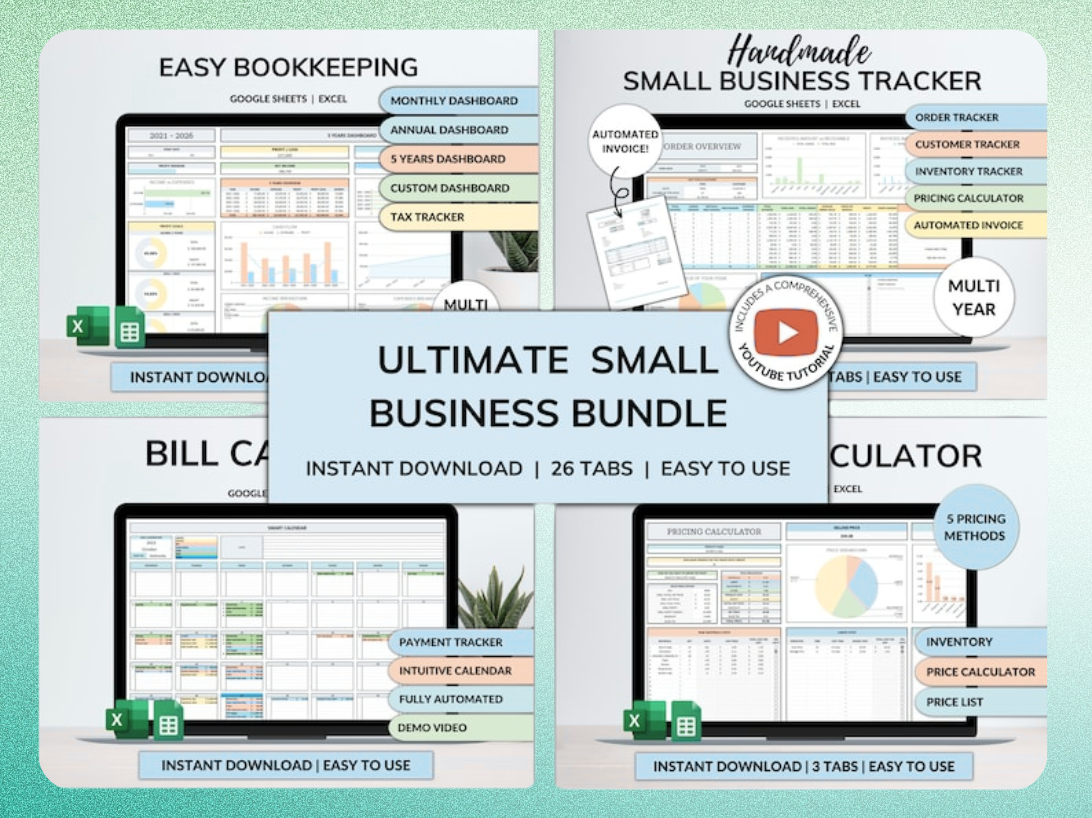
Starting from a blank sheet can be daunting. Pre-built templates offer a structured foundation. A good Google Sheets inventory template can track revenue, COGS, profit, and stock in one integrated system. These templates often include dashboards, pre-set formulas, and data validation rules.
Recommended Resources
Skip the blank-sheet setup
Use a cleaner template before you customize.
Analyzing Inventory Data: Revenue, COGS, and Profit Tracking
Your inventory data isn't just for stock counts; it's a goldmine for financial analysis. Link your Unit Cost and Selling Price to sales data to calculate Cost of Goods Sold (COGS) and Gross Profit per item. Create pivot tables to identify your most profitable products or those with slow turnover. This informs purchasing decisions and pricing strategies.
When to Scale Beyond Google Sheets
While powerful, Google Sheets has limitations. Recognizing these signs helps you decide when to transition to a more robust system.
Recognizing the Signs: When Your Business Outgrows Spreadsheets
If you find yourself struggling with collaboration, speed, or data integrity, it's a red flag. Businesses may consider moving beyond Google Sheets for inventory when tracking 500+ SKUs or requiring real-time e-commerce platform sync. Complex multi-location management or extensive reporting needs also push the limits.
Comparing Google Sheets to Dedicated Inventory Software
Dedicated inventory software offers features like automated purchase order generation, multi-channel sales integration, and advanced forecasting. Systems like Zoho Inventory or Cin7 Core provide robust solutions for growing businesses. These platforms are designed specifically for inventory, offering scalability and specialized features.
The Cost-Benefit Analysis of Upgrading Your System
Dedicated inventory software can cost between $50-300 per month, a significant jump from free Google Sheets. Evaluate the time saved, reduction in errors, improved efficiency, and enhanced reporting capabilities against this cost. For businesses with high inventory volumes or complex operations, the investment often pays for itself through increased accuracy and reduced losses.
Frequently Asked Questions About Google Sheets Inventory Management
Here are common questions about managing inventory with Google Sheets.
How to Handle Multiple Locations in Google Sheets
Add a Location column to your main inventory sheet. For detailed tracking per location, create separate tabs for each warehouse, each linked to the main sheet for consolidated reporting. Use SUMIF or QUERY functions to pull specific location data into summary reports.
Best Practices for Maintaining Data Accuracy
Regularly audit your physical inventory against your sheet. Implement strict data entry protocols and use data validation rules consistently. Review your Last Update Date column to identify stale data. Train all team members thoroughly on the inventory process.
Get the newsletter
One sharp idea every Sunday.
No fluff. No sales pitches. Just the best of what we publish, hand-picked.
Continue Reading
Related Articles
7 Free CRM Excel Templates for Small Businesses in 2026
Small businesses often start lean, and that includes their customer relationship management. A free CRM spreadsheet gives you immediate control over your client data without the immediate cost of dedi...
10+ Free CRM Excel & Google Sheets Templates for 2026
Small businesses still run on spreadsheets in 2026. A free CRM Excel template gives you contact tracking, deal stages, and follow-up reminders without monthly software fees or forced onboarding calls....
Excel vs. Google Sheets for Small Business: 2026 Guide
Small businesses run on spreadsheets. Whether you track clients, inventory, invoices, or marketing spend, you need a platform that handles your data without slowing your team down. The 2026 choice bet...